Messaging
Talk with your leads, clients, peers, teams and projects in one place. Share photos and files, reply, edit, search, and report or block someone.
Every conversation you have in Matchai lives next to the people or the deal it is about. A chat with a buyer sits with that buyer in your contacts. A chat about a deal sits in that deal's project. You never have to wonder which app a conversation happened in.
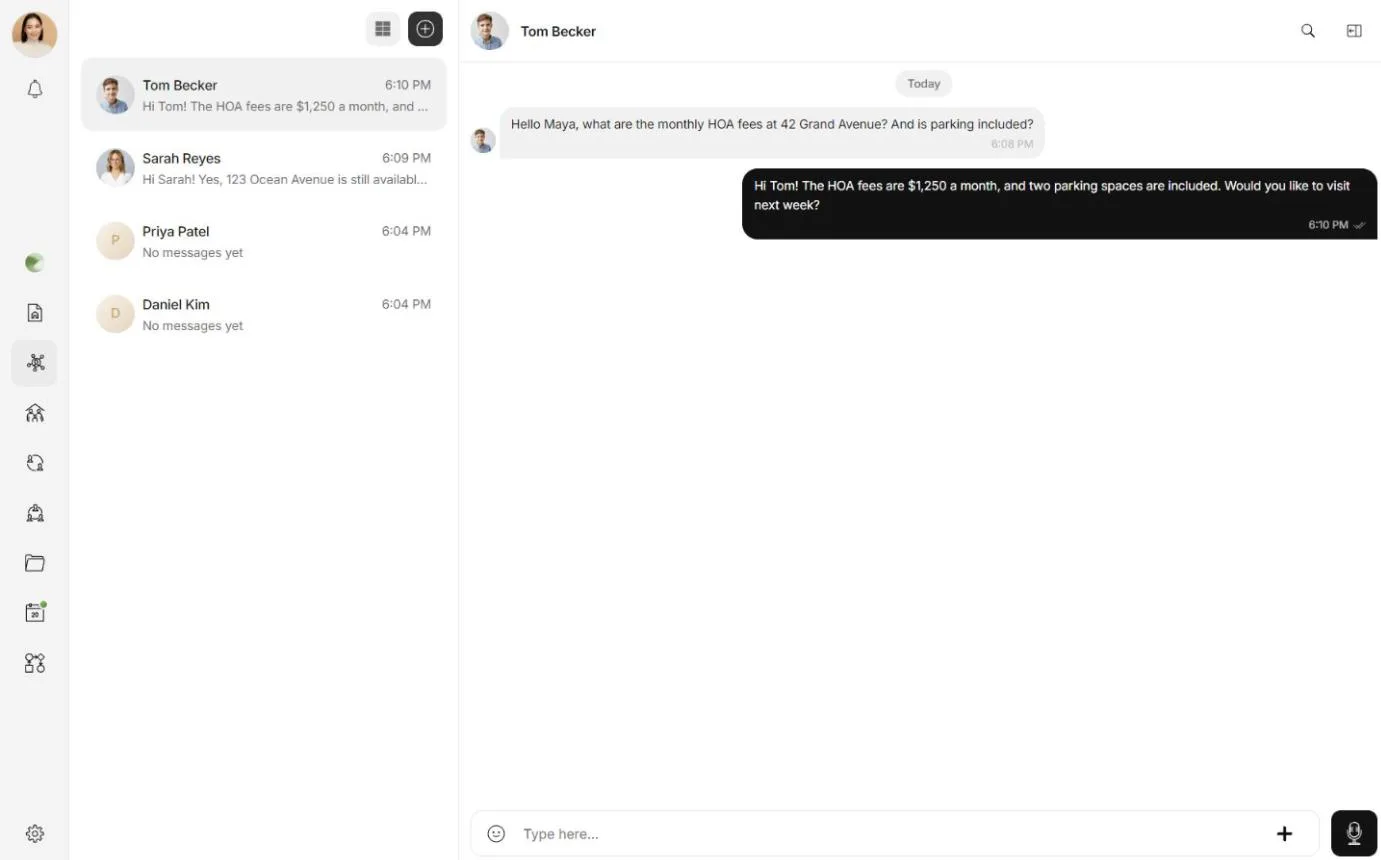
Where your conversations are
| Where | What it holds |
|---|---|
| Leads, Clients, Peers | One conversation with each of your contacts. See contacts. |
| Teams | One chat per team. Everyone on the team is in it, and joins it automatically when they join the team. See teams. |
| Projects | Several chats per project, grouped in sections. A new project starts with one chat for your client and one for your team. See projects. |
If you group your conversations under Messages in the workspace menu, all five sit there together.
The people you talk with see the same conversation on their side, under Messages. Visitors with no account can write to you too. See guest conversations.
Start a conversation
- With a contact, select them in Leads, Clients or Peers. To add someone new, see add a lead or add a peer.
- From a listing, visitors press the message button on your listing, and the conversation arrives in Leads.
- With a team, create the team. Its chat is ready straight away.
- In a project, right-click (or press and hold on a phone) an empty part of the project's chat list and choose Create new chat. Enter a Chat name and choose Create chat. Create new section groups chats together.
A conversation with nothing in it yet shows Start the conversation.
In a project, only the owners and admins of a chat can add people to it. See roles and permissions.
Send photos, files and more
Select the + button beside the message box (Add an attachment), then choose:
| Option | What it sends |
|---|---|
| Gallery | Photos from your device. |
| Camera | A photo you take now. On a phone only. |
| File | Documents, videos and audio files. |
| Location | Where you are now, as a Shared location card. On a phone only. |
| Request appointment | A request for an appointment about a listing. See appointments and viewings. |
On a computer, you can also drag files into the conversation: Drop files to send. Anything you type before sending becomes a caption on the photos or files.
You can send up to 20 files at once. Each photo can be up to 10 MB, each document or audio file up to 25 MB, and each video up to 50 MB.
Everything shared in a conversation is gathered in its details panel, under Media, Files and Links, and in Matchai Cloud.
Voice messages
When the message box is empty, the send button becomes a microphone (Record a voice message).
- Press and hold to record, and let go to send. Slide left to cancel (Slide to cancel).
- Tap, or slide up to lock, to record without holding. Then pause, Resume, Delete recording or Send voice message.
A voice message can last up to 5 minutes. Voice messages recorded in Matchai come with a written transcript under the player, so anyone can read them without playing the audio.
Reply, edit, copy and delete
Right-click a message on a computer, or press and hold it on a phone. The menu shows quick reactions, then:
- Reply quotes the message above yours. On a phone, you can also swipe a message to the right. Cancel reply removes the quote.
- Copy copies the text.
- Edit changes one of your own text messages. The message box shows Editing message. Choose Save changes, or Cancel editing.
- Delete removes one of your own messages. Press and hold it for 3 seconds. Everyone then sees This message was deleted. Deleting cannot be undone.
- Report message appears on other people's messages. See report or block someone.
An edited message shows Edited beside its time. Anyone in the conversation can select it to see the Edit history.
Why it works this way
An edit changes what everyone in the conversation is reading. If only you could see the earlier version, Edited would be a mark nobody else could check. Showing the history to everyone keeps a conversation trustworthy, which matters when it is about prices, dates and conditions.
Reactions, emoji and GIFs have their own page: reactions and GIFs.
Know when a message was read
Your own messages carry a tick:
| What you see | What it means |
|---|---|
| A faded message, no tick | Still sending |
| One light tick | Sent |
| One darker tick | Delivered to the other person |
| Two ticks | Read |
| Not delivered | It did not go through. Select Retry. |
In a one-to-one conversation, hold your pointer over the tick to see the time. In a group chat, select it to see, for each member, when they received and read it.
A message counts as read only once the other person has actually had it on screen for a moment, not as soon as they open the conversation. A green dot in your chat list marks a conversation with unread messages.
Messages your assistant sent for you are marked Sent by your assistant. See Matchai Assistant.
Search a conversation
Select the magnifying glass at the top of the conversation and type in Search messages.... Matchai highlights each match. Use Previous match and Next match, or the arrow keys, to move between them. Close search ends it.
Notes from Matchai
Some events appear in a conversation as a small centred note instead of a message. Nobody can reply to them or react to them.
| Note | When it appears | Who sees it |
|---|---|---|
| Saved or Unsaved, with a listing's name | A lead saved or removed one of your listings on your website | You only |
| Added a phone number — you can call them now | A guest confirmed their mobile number | You only |
| A person's name followed by "joined", with They can see the full chat history | Someone was added to a team or project chat | Everyone in the chat |
| Added or Removed, with a listing's name | A listing was added to or removed from a project | Everyone in the project |
| Photos or files added to a folder, or files sent through your drop link | Files were filed in Matchai Cloud, or arrived through a drop link. See sharing and drop links | Everyone in the conversation |
| An appointment card, such as Appointment requested or Appointment confirmed | An appointment was requested, confirmed, moved or cancelled | Everyone in the conversation |
Why it works this way
When someone joins a team or project chat, they can read everything that was said before they arrived. The note tells everyone already in the chat, so nobody is surprised that a newcomer can see earlier messages. Notes about saved listings, on the other hand, are for you: they help you follow up, and your lead never sees them.
Report or block someone
To report a message, open its menu and choose Report message.
Under What's wrong?, choose a reason, such as Spam or unwanted messages or Scam or fraud.
Add details if you like. Tick Also block this person to block them at the same time.
Choose Send report. Matchai answers Thanks. We review every report within 24 hours.
The person is not told that you reported them.
In your workspace, you block someone by ticking Also block this person when you report one of their messages. When you block someone, neither of you can send the other messages, appointment requests or invitations. Your conversation and its files stay as they are. Appointments you already have are not cancelled. Blocking does not hide your public profile or your listings. The conversation shows You can't send messages in this conversation.
To unblock someone, select Unblock above the message box in your conversation with them, or open Settings and go to Blocked.
The people you talk with can report and block from their side too. For more on how Matchai protects your account, see privacy and security.
Leave or archive a chat
You leave a team or project chat by leaving the team or the project itself, with Leave team or Leave project. There is no way to leave a single chat.
In a project, a chat's owners and admins can archive it: right-click the chat, or press and hold it on a phone, then press and hold Archive chat. Archived chats are kept apart: select Archived, in the project's chat list, to see them, and Back to chats to return. Unarchive chat brings one back.