Contacts
Your leads, clients and peers in one place. Where contacts come from, how to add someone, and what each person can and cannot see.
Everyone you work with is a contact: the buyer who wrote about a listing last night, the seller you are working for, the mortgage broker you send referrals to. Matchai keeps them in three lists, and each list is also your inbox for those people. Select a contact and your conversation with them opens.
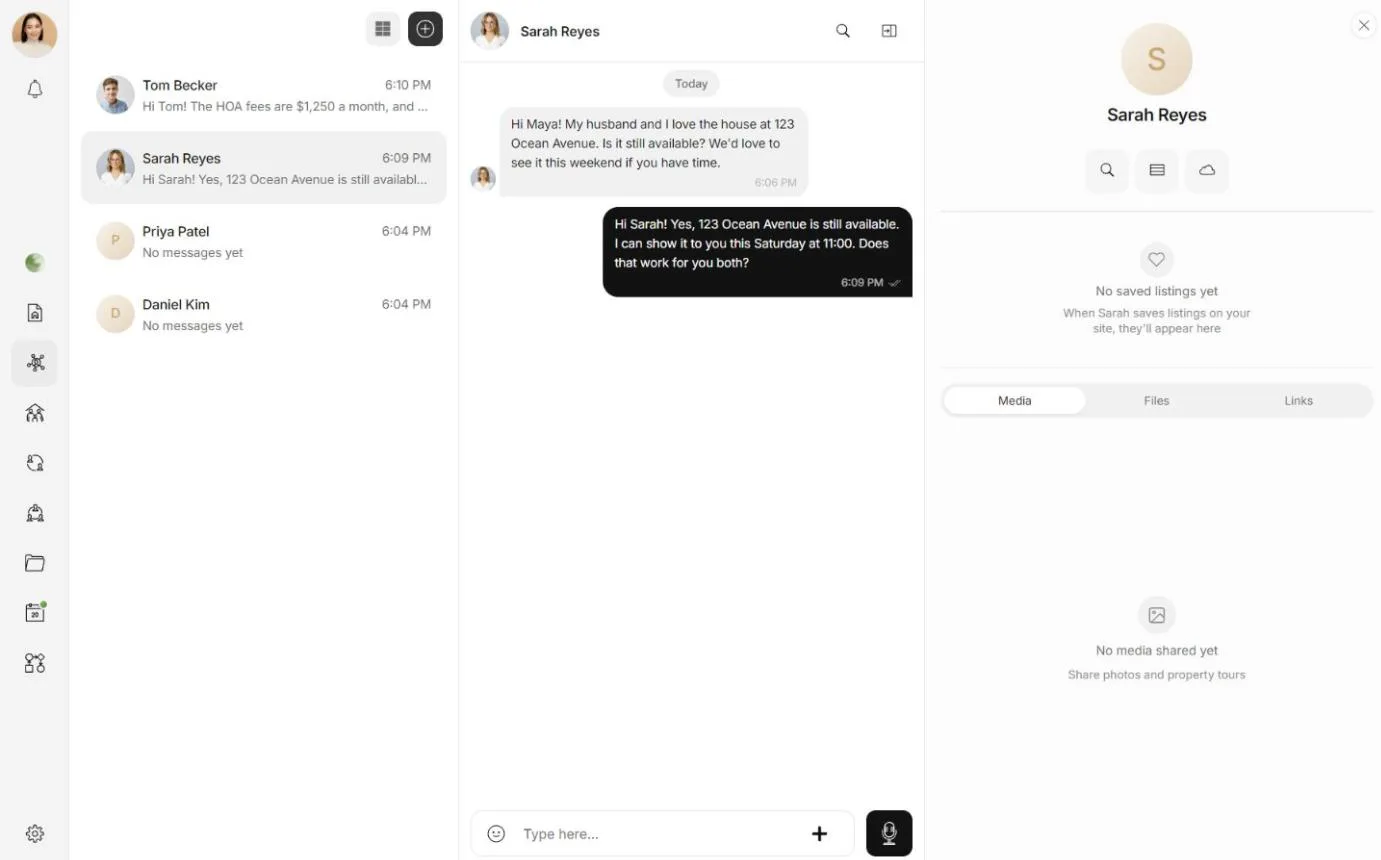
Leads, clients and peers
You find the three lists in the workspace menu. If you group your conversations under Messages, they sit there, beside your teams and projects.
| List | Who is in it | Typical example |
|---|---|---|
| Leads | People who might buy or sell with you | A visitor who asked about a listing |
| Clients | People you are working with | A buyer you are touring homes with |
| Peers | Other professionals | A broker, a mortgage broker, an inspector or a notary |
Each list is sorted by your most recent conversations first.
Why it works this way
A lead, a client and a peer are the same thing seen at different moments: a person and your relationship with them. Matchai keeps one record per person, and the list they appear in is a label on that record. When a lead becomes a client, nothing is copied and nothing is lost. The same conversation, the same saved listings and the same shared files move with them. It also means one person never shows up twice: if you try to add someone who is already your contact, Matchai tells you which list they are in.
Where contacts come from
Most contacts arrive on their own. Someone becomes your contact when:
- They message you from one of your listings, your Matchai Site, your Matchai Page or your business card. They arrive in Leads. A visitor does not need an account to do it. See guest conversations.
- They book a visit or an appointment with you. See appointments and viewings.
- They accept your invitation. You send an invitation when you add a lead, a client or a peer, as described below.
- You add them yourself, with their name and a phone number or an email address.
Professionals always go to Peers. When another professional messages you, or you start a chat with one, you each appear in the other's Peers list. When one of your leads or clients turns their regular account into a professional account, they move to Peers on their own.
Matchai notifies you when a new lead writes to you for the first time, and when someone shares their contact with you from your business card. See notifications.
Why it works this way
You cannot pick any Matchai member and add them to your lists. A person becomes your lead or your client through something they did, such as writing to you, booking a visit or accepting your invitation, or because you typed in details they gave you. Nobody finds themselves in a stranger's client list, and the people in yours are people who chose to talk to you.
Add a lead
Open Leads and select the + button at the top of the list. On a phone, it is in the top bar.
In Add a new lead, enter a First name. Last name is optional.
Enter an Email, a Phone number, or both. Matchai needs at least one: Add a phone number or an email address.
Choose how to add them:
- Invite creates an invitation link for them. You can add a Personal message (optional) first.
- Add manually files them as your lead without an invitation.
Share an invitation
When you choose Invite, Matchai shows Invitation created! with the Invitation link. Matchai does not send anything itself: you send the link, from your own phone or email, so it comes from you.
- Copy puts the link on your clipboard.
- Share via sends the link, with your message, by Text, Email, WhatsApp, Messenger, Instagram, X or LinkedIn.
- The screen shows the date the link expires.
When the person opens the link and signs in or creates an account, they are linked to the lead you filed, and a conversation between the two of you opens.
Someone who is not on Matchai yet
A lead you added manually, or invited, shows in your list straight away. Until they join, their conversation shows Not on Matchai yet and the message box reads Messaging opens once they join. Choose Invite to chat to create an invitation link for them at any time.
If Call shows in their details, you can phone them from there in the meantime.
When someone may have joined
If someone confirms, on their own Matchai account, the email address or phone number you filed a lead or client under, Matchai tells you that they may have joined. Choose Invite to chat in their conversation, or Send invite in their details, to create an invitation link and share it with them.
Why it works this way
Matchai never links the person to your record on its own. The email or number you typed could have a typo, or a phone number could now belong to someone else. Linking on a guess could put a stranger in your conversation. An invitation they accept is proof it is really them.
Add a client
Open Clients and select the + button at the top of the list.
In Add a new client, search your own leads and clients by name or email.
Pick a lead to convert them to a client, or pick a client to open them.
If the person is not one of your contacts yet, choose Add someone new. The same form as for a lead appears, with Invite and Add manually.
This search only looks through your own contacts. It never searches other people on Matchai.
Add a peer
Open Peers and select the + button at the top of the list. On a phone, it is Start chat in the top bar.
In Start a new chat, search for the professional by name or email.
Choose Start chat. If you already talk with them, Go to chat opens your conversation.
If they are not on Matchai yet, choose Send invitation, add a personal message if you like, then Create invitation. When they join with your link, a chat between you is created automatically, and you each appear in the other's Peers.
Open a contact
Select a contact in a list to open your conversation with them. To see their details, select Show details panel at the top of the conversation on a computer, or tap their name on a phone.
The details panel shows:
- their name, with a green dot when they are online. See online status and typing.
- Call, when you have a phone number for them.
- the listings they saved on your website.
- Media, Files and Links: everything shared in your conversation.
- Open in Cloud, which opens this contact's folder in Matchai Cloud.
The leads table
In closed betaYour leads can also be shown as a table, with each lead's priority, warmth, stage, budget and next step. Select Table view at the top of your leads. Lead pipeline explains each column.
What the person can and cannot see
The person sees their conversation with you, your profile, and the listings they saved. Matchai tells them that you can see the listings they save.
They do not see:
- which list you keep them in, or whether you converted them
- the name, phone number or email address you typed for them
- anything in your leads table, such as their warmth, stage, budget or next step
- the notes in your conversation that tell you when they saved or removed a listing
Why it works this way
Your contact record is your professional file about a person, not a shared document. You might mark a lead as cold, note a budget they mentioned once, or plan a follow-up. That is your judgement, and showing it to them could hurt the relationship. The person is a party to the conversation, so they see everything you say to them. They never see what you keep about them.
The name you see
If the person has a Matchai account, you see the name on their profile, and it updates when they change it. Otherwise you see the name you typed.
- New enquiry is someone who wrote to you without giving a name. See guest conversations.
- Deleted account is someone who deleted their Matchai account. Your record and your history with them stay in your list, without their personal details.