Matchai AssistantIn closed beta
What the Matchai Assistant does in your workspace, how to talk to it, what it costs, and what it never does without asking you first.
The Matchai Assistant works inside your workspace. Tell it what you need in your own words, such as "move Thursday's viewing to 4 pm" or "add the buyer I met today as a lead". It looks things up, prepares the change and shows it to you. You decide what happens.
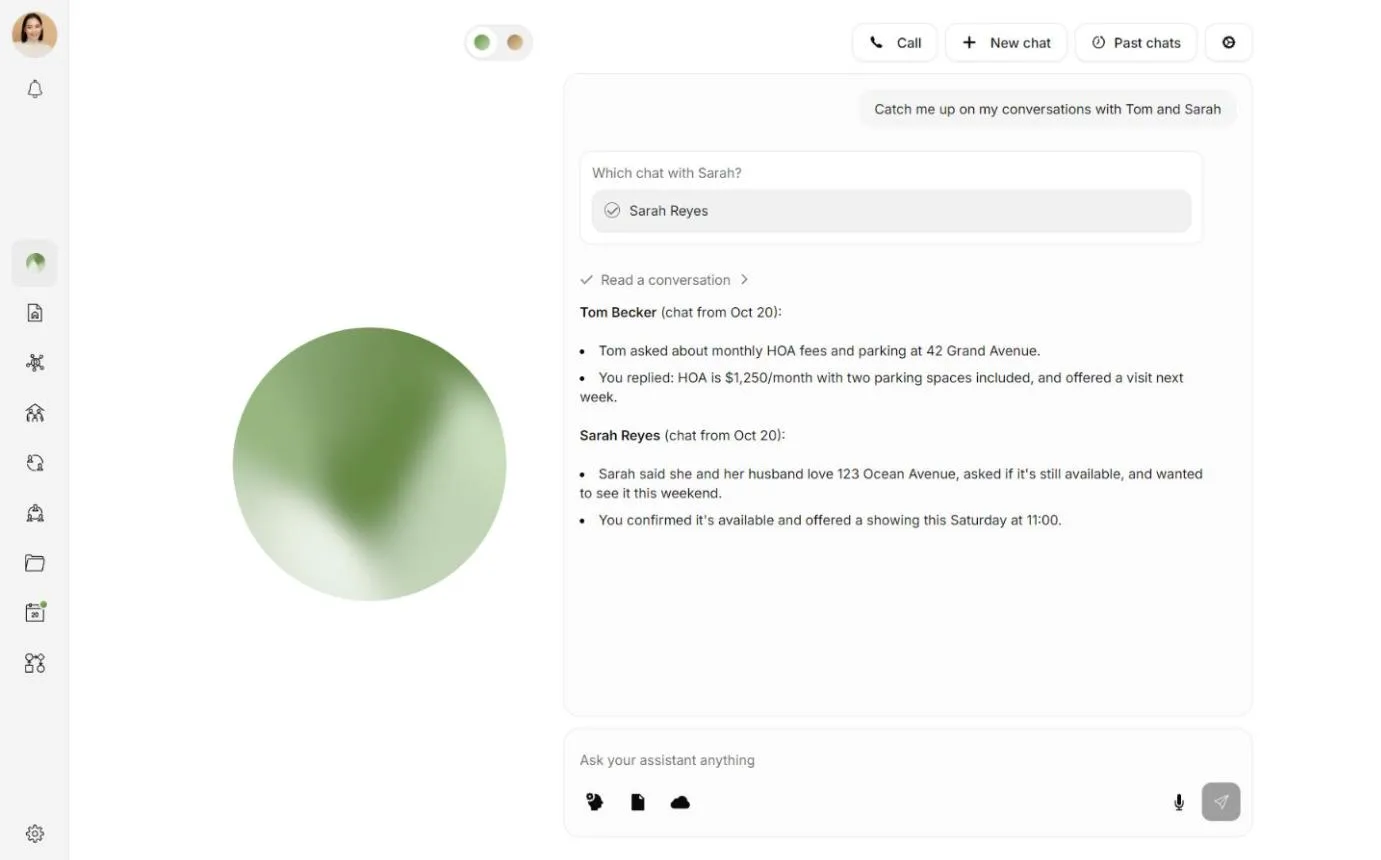
To open it, choose Assistant in the sidebar, or in the tab bar on your phone.
What it can do
| Area | What you can ask for |
|---|---|
| Listings | Read your listings. Start a new listing as a draft. Change the text, the price, the room counts or the areas, or whether a listing is published. Move a listing to a new address, archive it, or put it on your Matchai Site or take it off. Choose the cover photo, reorder photos, and add, rename or resize rooms. Edit, virtually stage or sharpen a photo. |
| Messages and email | Catch up on your conversations and draft replies. Send a message, or send a document into a conversation. Draft and send an email to one of your contacts. Start a conversation, invite someone who is not on Matchai yet, or add a contact to a group conversation. |
| Calendar | Read your calendar and what is waiting on your answer. Book a viewing or a meeting, or reschedule one. |
| Contacts, teams and projects | Look up your leads, clients and peers, and add a new contact. Create a team or a project, invite people to it, add a team to a project, or rewrite a project's description. |
| Files | Find your documents and read the figures in one. File a document on a listing, project or team, name and tag it, move it, put it in the trash or bring it back. Publish a document on a listing page. Create an upload link so someone without an account can send you files. |
| The web | Search the public web, with a source for each fact. Read a public page. Work on other websites for you, in your own browser. See Websites. |
| Memory and skills | Remember how you like things done. See Memory. Follow the steps of a task you saved. See Skills. |
When more than one listing, contact or document could be the one you mean, it shows you the choices by name instead of guessing.
The assistant works on the same listings, contacts, appointments, conversations and files you use yourself, so whatever it changes, you find in the usual place. To build a complete listing from your photos, use Create a listing.
For the full list, open the assistant's Settings with the gear at the top of the assistant, then choose Tools. Each tool says what it reads and what it changes. Tools that wait for your approval are marked Asks you first.
Talk to it
Type in the message box, where it says Ask your assistant anything, and press Send. The assistant answers in your language.
You can also:
- Type
@and start typing a name to tag one of your listings, contacts, projects, teams or files. - Choose Attach a file, or drop a file anywhere on the chat. The assistant reads it and can file it where it belongs.
- Choose Attach a listing, contact, project, team or file to point the assistant at something in your workspace.
- Type
/and pick one of your skills to run it. See Skills. - Use the microphone to dictate your message. See Talk to the assistant.
When the assistant needs something from you, it asks with a card in the chat. For a question, pick an answer or choose Something else… to say it in your own words. For a change, the card shows exactly what will happen and waits. See Approvals.
Stop, start over and find past chats
- While the assistant is working, Send becomes Stop. Press Stop to end the reply it is working on.
- New chat starts a fresh conversation. If the one you leave is still working, it carries on, and if it is waiting on your answer, it waits for you. A message you had not sent yet, or a voice note still being turned into text, is not kept.
- Past chats lists your recent conversations with the assistant. Open one, then choose Continue this chat to pick it up, or Rename to give it a name you will recognise.
What it costs
The assistant's work uses Matchai Energy. Each reply uses a little. Some work uses more, such as editing a photo or working on a website. Before a photo edit, the card tells you how much Energy it takes.
If you run out, the chat tells you that you are out of Energy. On the web, it also shows Top up. The assistant can carry on once you have Energy again.
What it never does without asking
- Anything that leaves Matchai or changes your work. Sending a message or an email, booking an appointment, editing or publishing a listing, filing or sharing a document, inviting someone: each waits for your yes on a card. The one exception by default is remembering a preference you state, which it saves with an Undo on the card. See Approvals.
- A final button on another website. Before it presses a button that pays, sends, publishes, signs, deletes or submits, it asks you, every time. See Websites.
- Passwords and codes. It never types a password, a card number or a two-factor code for you.
- Instructions it reads. A message, a document, a web page, a memory page or a skill can never tell it to skip asking you. If something it reads gives it an instruction, it tells you instead of following it.
- Claiming it is done. It never says it did something that is still waiting on your approval.
Why it works this way
Everything the assistant sends or publishes carries your name, and your reputation rides on it. Reading is safe, so the assistant reads freely to answer you. Changing your work, or reaching another person, is your call, so it shows you exactly what it is about to do and waits.
The assistant's settings
Open them with the gear at the top of the assistant.
- Skills opens your library of saved skills.
- Tools lists everything the assistant can do. It is also where you choose whether messages go out under your name or as your assistant, and which actions it may do without asking.
- Activity shows everything your assistant has done for you, and everything it tried to do and didn't. Tick Also show what it looked at to include what it read.
- Memory shows how many pages it keeps and what changed lately. Open memory takes you to the pages.
Memory
What the assistant remembers about how you work, and how to edit, undo or delete it.
Skills
Save something you do often as steps, then run it by typing its name.
Approvals
Which actions ask first, what you can let it do on its own, and why final buttons always ask.
Talk to the assistant
Dictate a message, or go hands-free while you drive.
Websites
Let the assistant work on other websites for you, in your own browser.