Teams
Create a team, invite your colleagues by name or with a link, talk in the team chat, and share projects and listings with the whole team.
A team is the group of professionals you work with every day, such as your brokerage team or the partners you always close deals with. Each team has one chat that every member is in, and it can work on projects and listings together.
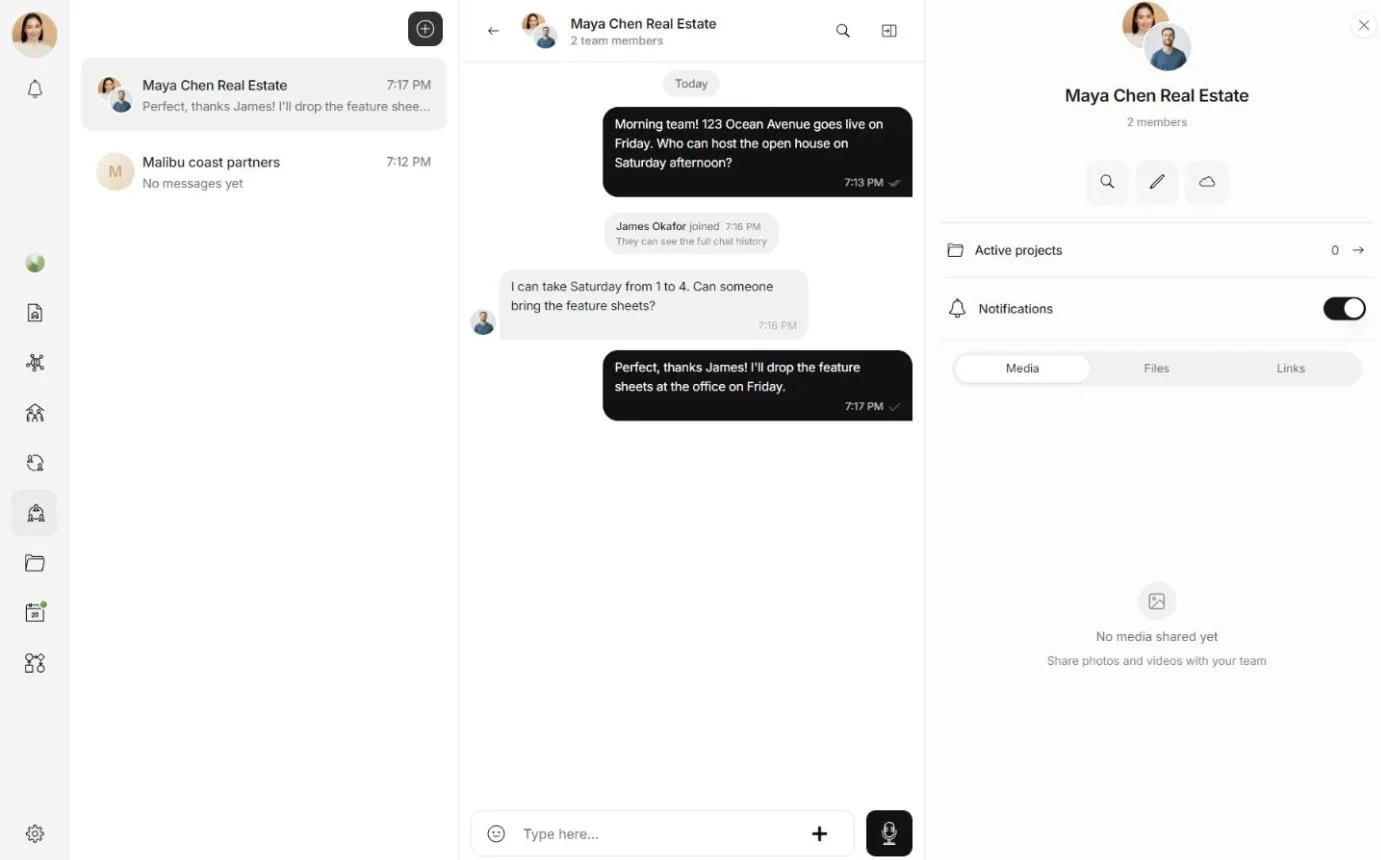
Create a team
Open Teams in the workspace menu.
Select the + button at the top of your list of teams. On a phone, use the + button in the header. If you have no team yet, choose Create team.
Enter the Team name, then choose Create team.
The team appears at the top of your list, with its chat ready to use. You are its owner.
To give the team a picture and a description, open its details and select the edit button. In Edit team, add a Team picture, change the Team name or write a Description (optional), then choose Save changes. Owners and admins can do this.
Open a team's details
Select a team in your list to open its chat.
- On a computer, the team's details sit in a panel beside the chat. Show or hide it with the details button at the top of the chat. Select the team's name at the top of the chat to see its members.
- On a phone, tap the team's name at the top of the chat to open its details.
The details show how many members the team has, its Active projects, and the photos, files and links shared in the chat, under Media, Files and Links.
Invite members
Only owners and admins can invite people to a team.
Open the team's members: in the team's details, select its picture and name. On a computer, you can also select the team's name at the top of its chat. While you are the only member, the details offer Invite team members as well.
In Team members, choose Invite member.
Search by name or email, then choose Invite beside the person.
The person receives a notification with Accept and Decline. They join the team, and its chat, when they accept. Only professionals can join a team, so the search finds professionals only.
Invite with a link
To invite someone who is not on Matchai yet, or several people at once, use a link.
In Team members, choose Invite via link.
Under Role, choose Team member or Team admin. Everyone who joins with this link gets that role.
Choose Create invitation link, then Copy link or Share via WhatsApp.
The link works for 30 days. The window shows the exact date under Expires on. Anyone who opens the link can join, so share it only with the people you want on the team.
Accept an invitation
When someone invites you, open their link or the notification, then choose Accept invitation. If you are not signed in yet, choose Sign in to accept first. If your account is not a professional account, Matchai shows Professional account required, with Set up professional account.
If you decline an invitation that was sent to you and change your mind, you can still accept it within 24 hours, from the same link.
The team chat
Every member of the team is in its chat, and joins it automatically when they join the team. Someone who joins later can read what was said before they arrived. Messaging covers everything you can do in a chat.
Work on projects together
A team can be added to a project, so everyone on the team can open it.
In the team's details, select Active projects.
Choose Add team to projects, or Add to a project if the team has no project yet, then pick the project.
To take the team off a project, open Active projects and choose Remove from project beside it.
Adding a team to a project takes an owner or admin of the project. Removing it can be done by an owner or admin of either the project or the team. You can also do both from the project itself. See projects.
Listings that belong to a team
A listing can belong to a team instead of one person. When it does, every member of the team can work on it, and when someone changes its status, the rest of the team is told. Viewing requests for a team's listing belong to the team: every member sees them in their calendar and can answer them. The member who accepts a viewing has that time blocked in their own availability.
Why it works this way
A brokerage team's listings are the team's work, not one person's. When the team owns a listing, nobody has to forward it, share it or copy it, and it stays with the team if a member leaves. Each member still keeps their own listings, which stay theirs alone. See roles and permissions.
Rename or archive a team
In your list of teams, right-click a team, or press and hold it on a phone, then choose Rename team or Archive. Owners and admins can do this.
An archived team leaves your list, but nothing in it is deleted. To find it, choose Archived at the bottom of your list of teams. Open the same menu on an archived team and choose Unarchive to bring it back. Back to teams returns to your active teams.
Leave a team
Open Team members, open the menu beside your own name, and choose Leave.
If you are the owner and other people are still on the team, Matchai asks you to choose a new owner first, then Transfer and leave. If you are the only member, leaving removes you from the team. Roles and permissions explains ownership.