Projects
Give each deal its own space, with the people on it, its listings, the teams working on it, and chats organised in sections.
A project is the space for one deal or engagement: a purchase, a sale, a development. It gathers everyone involved, from your client to the notary, the listings the deal is about, the teams working on it, and as many conversations as the deal needs.
Create a project
Open Projects in the workspace menu.
Select the + button, New project, in your list of projects. On a phone, use the + button in the header. If you have no project yet, choose Create project.
Enter the Project name, then choose Create project.
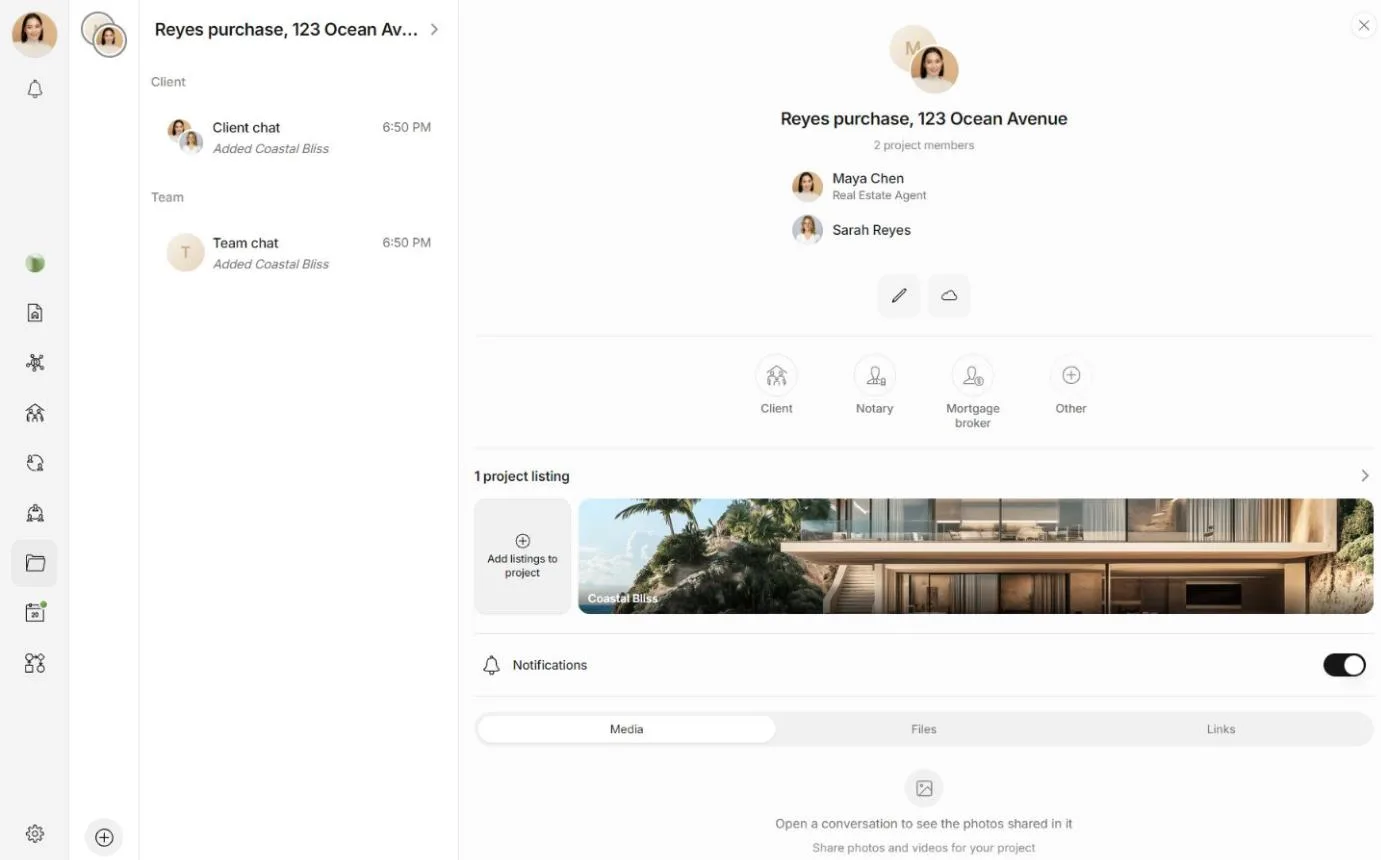
You are the project's owner. The project starts with two sections, each with one chat:
- Client chat, in the Client section, for talking with your client.
- Team chat, in the Team section, for the professionals working on the deal.
Open a project's details
Select a project in your list to open its chats. To see the project's details, select its name at the top of the list of chats. On a computer, the details also sit in a panel beside the chat.
The details show who is on the deal, with each person's trade under their name, the listings added to the project, and the photos, files and links shared in its chats, under Media, Files and Links. Select the list of people to open the full roster.
Add people to the deal
In the project's details, select one of the suggested trades, or open the roster and choose Add someone.
Under Who's on this deal?, choose what the person does, such as Client, a notary or an inspector. Search professions finds any trade. For one that is not listed, choose Someone else and type it under What do they do?.
Pick the person from your contacts, or type their name and choose the option to add them. For someone new, fill in their name, and their Phone, Email and Company if you have them, then choose Add to project.
People you add this way do not need a Matchai account. What happens next depends on who they are:
| Who | What happens |
|---|---|
| Your client, who already has a Matchai account | They join the deal straight away and are added to the Client chat. |
| Anyone without an account, such as a notary or an inspector | They are recorded on the deal straight away. They cannot open the project, and they stay in your contacts if you take them off it. |
Why it works this way
A deal involves many people who will never use Matchai, and you still need to know who they are. Recording them on the project keeps that list in one place without giving anyone access they did not ask for. Access is a separate step, for the professionals who work in the project with you.
Invite professionals to the project
Professionals who work on the deal with you, such as a co-listing agent or a mortgage broker, join as project members. Only owners and admins can invite them.
Open the project's roster and go to Access.
Choose Invite member, search by name or email, and choose Invite beside the person. Someone without a professional account appears marked Client, with Add instead of Invite, and joins as your client.
The professional receives an invitation and joins the project when they accept. You can also choose Invite via link, pick Project member or Project admin, and share the link. It works for 30 days.
The roster has two views. People answers "who is on this deal", by trade. Access answers "who can open this project, and with which role", including the teams working on it.
Add a team to the project
To bring a whole team into the project, open Access and choose Add team under Teams, then pick the team. Everyone on the team can then open the project. Owners and admins of the project can add a team. To take it off again, open the menu beside the team and choose Remove.
You can also add a team from the team's own page. See teams.
Add listings to the project
In the project's details, choose Add listings to project. You can add any listing that someone on the project owns or has saved, and choose Add beside each one. Anyone on the project can add listings.
Organise the chats
A project can have as many chats as the deal needs, grouped in sections.
- To create a chat or a section, right-click an empty part of the list of chats, or press and hold it on a phone, and choose Create new chat or Create new section.
- On a section, the same gesture offers Rename section, Create chat in section and Delete section.
- On a chat, it offers Move to section, Rename chat and Archive chat. To archive, press and hold Archive chat. If you cannot change a chat, the menu says View only.
Messaging explains who can add people to a chat and everything else you can do in one.
Rename or archive a project
In your list of projects, right-click a project, or press and hold it on a phone, then choose Rename project or Archive. Owners and admins can do this.
When the deal is done, archive the project. It leaves your list, but nothing in it is deleted. Choose Archived at the bottom of your list of projects to find it, and Unarchive to bring it back. Back to projects returns to your active projects.
Leave a project
Open the project's roster, go to Access, open the menu beside your own name, and choose Leave. If you are the owner and other people are on the project, Matchai asks you to choose a new owner first. See roles and permissions.