Listings
What a listing is on Matchai, how it moves from draft to published, and where your published listings appear.
A listing is the page that presents a property to buyers or tenants: its photos, price, description, rooms, features, location and documents. You create and edit your listings in your workspace, under Listings. When you publish one, it appears on your website and becomes readable by search engines and AI assistants.
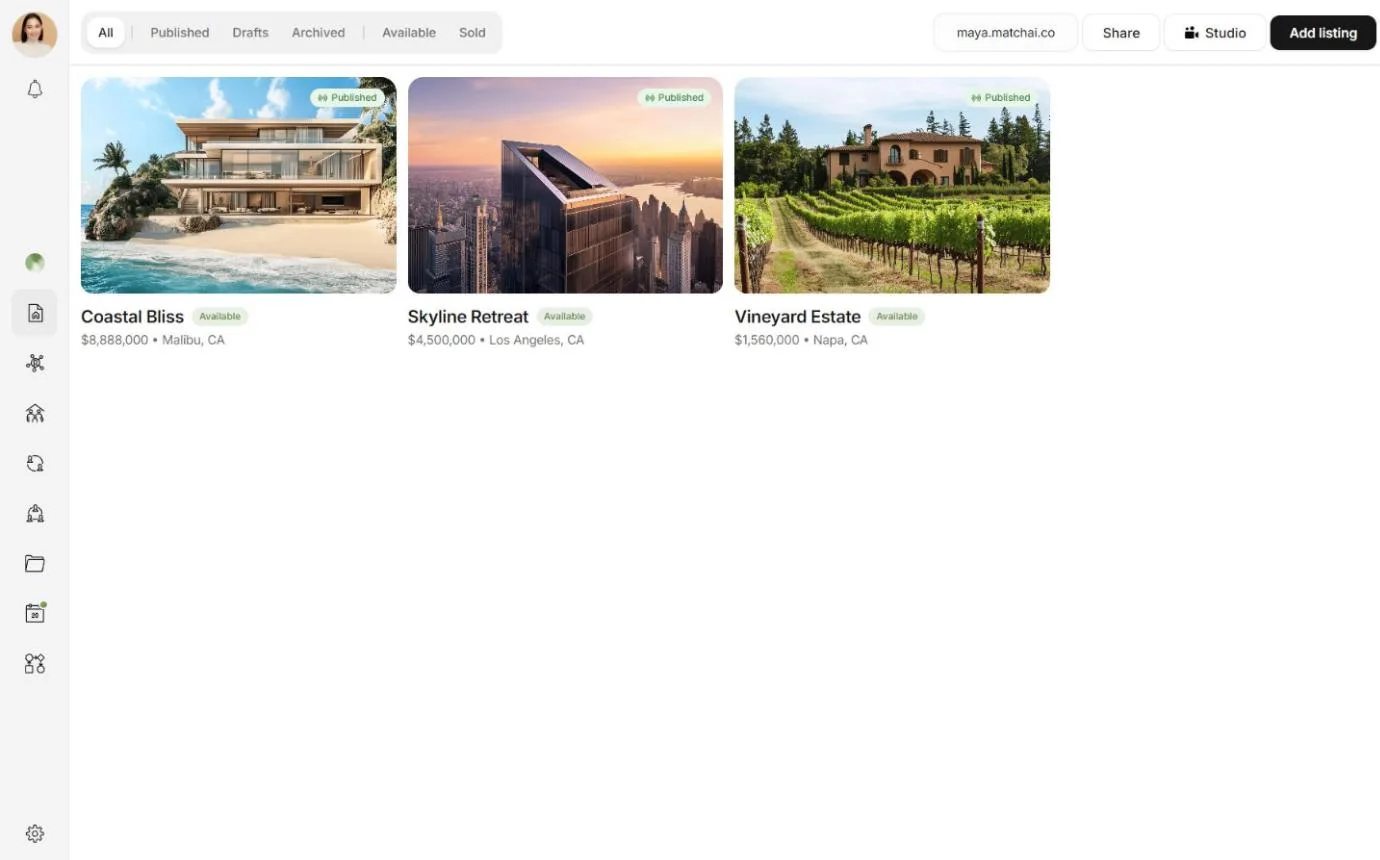
Some details describe the property itself, such as its rooms, its features and the year it was built. Others describe the offer, such as the price and whether it is for sale or for rent. You edit all of them in the same place, the listing page.
Three ways to add a listing
In Listings, choose Add listing. Matchai asks how you want to start.
| Option | What it does | Best when |
|---|---|---|
| Auto-magically create | You send photos, an address and a price. Matchai's AI writes the rest. | You have photos of a new listing. |
| Quick import | You paste the address of a listing on another website. Matchai copies its details and photos, then writes the listing. | The listing is already online somewhere else. |
| Manually | Opens a blank listing, ready to fill in yourself. | You prefer to write everything yourself. |
The first two use Matchai Energy. Writing a listing manually does not. See create a listing and import from a website.
The life of a listing
Every listing has two statuses, and they change independently.
Visibility says who can see the listing.
| Status | Who can see it |
|---|---|
| Draft | Only you and the people who can edit the listing. Every new listing starts here, even one written by AI. |
| Published | Everyone. It is on your website, your Matchai Page and in search. |
| Archived | Only you and the people who can edit the listing. Archived listings are put away, not deleted, and you can bring them back. |
Transaction status says where the deal stands: Available, Sold or, for a rental, Rented. Marking a listing as sold does not unpublish it. It stays on your website, marked as sold, until you unpublish or archive it.
The tabs at the top of Listings filter by both: All, then Published, Drafts and Archived, then Available and Sold.
Why it works this way
Your name is on every listing you publish. Matchai never publishes a listing on its own, not even one it wrote from your photos. You read the title, the description and the details first, then publish when you are happy with them.
Where your published listings appear
- Your Matchai Site. Publishing a listing adds it to your website automatically. You need a Matchai Site before you can publish. See your Matchai Site.
- Your Matchai Page. Your published listings appear on your page, newest first. See your Matchai Page.
- Search engines and AI assistants. Matchai prepares every published listing in a form that Google, ChatGPT, Claude, Gemini and Perplexity can read. See your listings in AI search.
Your website must be published too. A listing on a website that is still unpublished stays hidden from visitors.
Find your way around a listing
Open a listing from Listings to see it the way a visitor would. Choose Edit to change it. Everything saves as you go, so there is no save button. Choose Stop editing when you are done.
On a computer, the list on the left takes you to each part of the listing: Photos, Overview, Description, Location, Spaces, Features and the sections after them. Below a line come the parts visitors never see: Showings, Terms, Listing agent and Analytics. On a phone, the same list opens from More.
In this section
Create a listing
Turn photos, an address and a price into a complete listing written with AI.
Import from a website
Copy a listing you already have on another website, photos included.
Photos and media
Upload and order photos, choose the cover, lay out the page, and add a virtual tour.
Location
Set the address and the map, and describe the neighbourhood.
Price and details
Price and currency, sale or rent, area units, rooms and spaces, and features.
Publish and visibility
Publish, unpublish, archive, mark as sold and delete a listing.
Listing analytics
See who viewed a listing, where they came from, and when an AI assistant read or recommended it.
Your listings in AI search
How published listings become findable in Google, ChatGPT, Claude, Gemini and Perplexity.
Listings in several languages
Your listings in English, French and Spanish, and how to edit a translation.