Photos and media
Upload and order a listing's photos, choose the cover, lay out the page, add neighbourhood photos, a virtual tour and videos.
Photos sell a listing. In Matchai you manage them in one place, the media manager: you add them, put them in order, choose the cover and decide which ones appear between the sections of the listing page.
Open the media manager
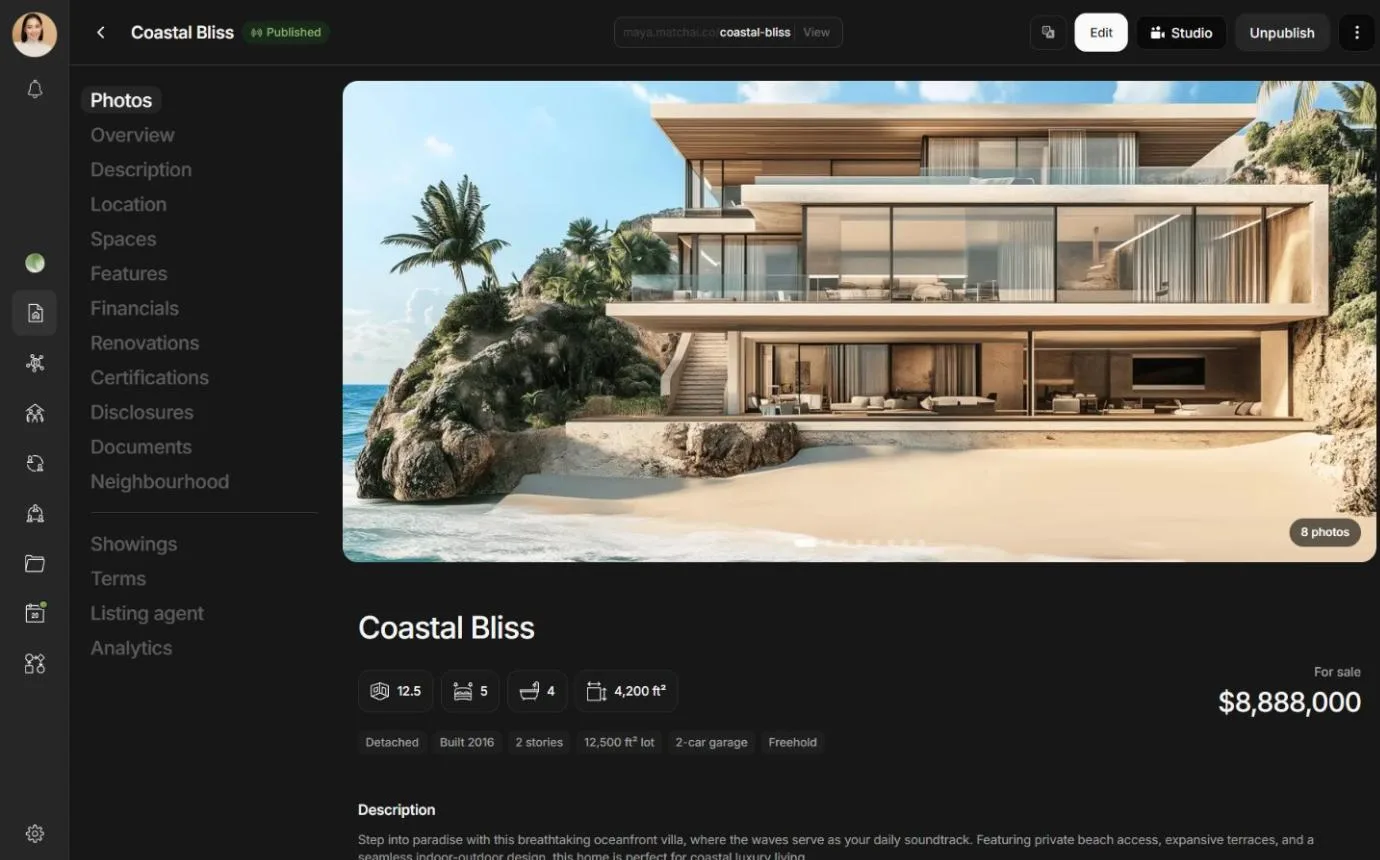
Open the listing from Listings and choose Edit.
Select the large photo at the top of the listing. On a computer, Manage photos appears when you point at it. On a phone, it is always shown.
The Media manager opens. Changes save as you make them, and the bottom of the window shows Saving... and then Saved. When you are done, press Esc or select outside the window. On a phone, swipe the panel down.
Add photos
Drag photos anywhere on the screen, or select Click or drag files to upload to choose them. You can drop a whole folder.
- Photos can be PNG, JPEG or WebP, up to 10 MB each.
- Large photos are resized before they upload, so they load quickly for visitors.
- New photos are added at the end of the gallery.
Uploads keep going if you close the media manager or move to another part of Matchai. A notice shows Uploading and the number of photos. Choose View in it to open the media manager again, or Cancel to stop. It shows Photos uploaded when everything is in. Keep the browser tab open until then: closing the tab stops the uploads.
If a photo fails, its tile shows Upload failed. Choose Retry to send it again, or Dismiss to remove it.
Put photos in order and choose the cover
In Gallery order, drag the photos into the order you want. Visitors browse them in this order.
The first photo is the cover. It is marked Cover, and it is the photo people see first, at the top of your listing page and on your website. To change the cover, drag another photo into first place.
Delete a photo
Select the bin on a photo to delete it. On a computer, the bin appears when you point at the photo.
Deleting a photo cannot be undone
The photo is removed from the listing straight away. To use it again, upload it again.
Lay out the listing page
Your listing page shows photos in three places: the cover at the top, and two photo breaks between the sections that describe the property. Once a listing has three photos or more, choose Page layout in the media manager to decide what goes where.
- Hero is the cover. It is set in Gallery order.
- Photo break 1 and Photo break 2 each hold three photos.
In Page layout, select an empty slot (Add photo) or a photo you want to swap.
Choose the photo to place there. A photo can be in one place at a time, so placing it moves it.
To clear a slot, choose Remove. The photo goes back to the gallery. It is not deleted.
Why it works this way
Until you place a photo yourself, Matchai fills the two photo breaks for you with the photos after the cover. As soon as you place one, Matchai treats the layout as yours: only the photos you place appear in the breaks, and new photos you upload no longer fill them. Fill every slot you want to show, and the page stays exactly as you arranged it.
Neighbourhood photos
Photos of the area, such as the park down the street or the main shopping street, are kept apart from the photos of the property.
In edit mode, go to the Neighbourhood section.
Choose Add neighbourhood photos, or Edit neighbourhood photos if there are some already. A media manager titled Neighbourhood photos opens. It works like the main one.
Neighbourhood photos appear on the listing once there are at least three. Until then, the section tells you how many more are needed.
To show them after the property's photos when visitors browse the whole gallery, turn on Combine galleries in the Neighbourhood section.
Virtual tour and video links
In the media manager's Gallery order view, under Multimedia:
- Virtual tour URL takes a link to a 3D or virtual tour, such as a Matterport tour.
- Video URL takes a link to a video hosted elsewhere, such as YouTube.
Each one saves when you leave the field. Visitors see a Virtual tour button and a Video button on the listing page.
Videos from the Studio
In closed betaVideos you finish in the Studio can go on the listing too. Under Listing videos, pick one from Your Studio videos and choose Add. A video marked Hero plays at the top of the listing page, and the others appear in a video section further down. See photos and video.
To take a video off the listing, point at it and select the bin. Undo brings it back.
Edited and staged photos
In closed betaThe Matchai Assistant can retouch a listing photo, sharpen a small or soft one, or furnish an empty room. Each edit uses a little Energy, and the assistant asks you before it starts. Nothing changes on the listing until you choose to add the result, and the original photo is never deleted. See AI staging and the Matchai Assistant.
Edited photos carry a label on the public listing page: AI-edited for a retouched photo and Virtually staged for a furnished room. You see the same labels in the media manager.
Why it works this way
A buyer who visits the property should find what the photos promised. The label tells them which photos were changed, so a staged living room is never mistaken for furniture that comes with the house. It protects your credibility as much as theirs.
Floor plans
Upload a floor plan as a photo, like any other. When Matchai's AI creates a listing, it keeps floor plans in the gallery but never places them in a photo break, where a plan blown up to full width would look like a mistake.