Your Matchai Page
One page at yourname.matchai.pro for your social bios, with your photo, social profiles, links, files and listings, and a way to book you.
Your Matchai Page is one page that gathers everything you share. It lives at an address such as jane.matchai.pro, and it is made to go in the one link your Instagram, TikTok, LinkedIn or X bio allows, or at the foot of your email signature.
Every professional account already has a Page. It stays hidden until you publish it.
What visitors see
From top to bottom:
- You. Your photo, your name, a headline and your bio.
- Your social profiles, as round buttons.
- Ways to reach you. Save contact adds you to their phone's contacts. Message on Matchai starts a conversation with you. If you turn on booking, Book a meeting with your first name comes first.
- Your links, in the order you choose.
- Your files, which visitors can download.
- Your site. A link to your Matchai Site, once it is published.
- Your listings. Your published listings, newest first. Each one opens on your site. If you have no published site yet, the listings show as pictures without a link.
At the very bottom, a small Matchai mark offers visitors Get your own Matchai Page.
Publish your Page
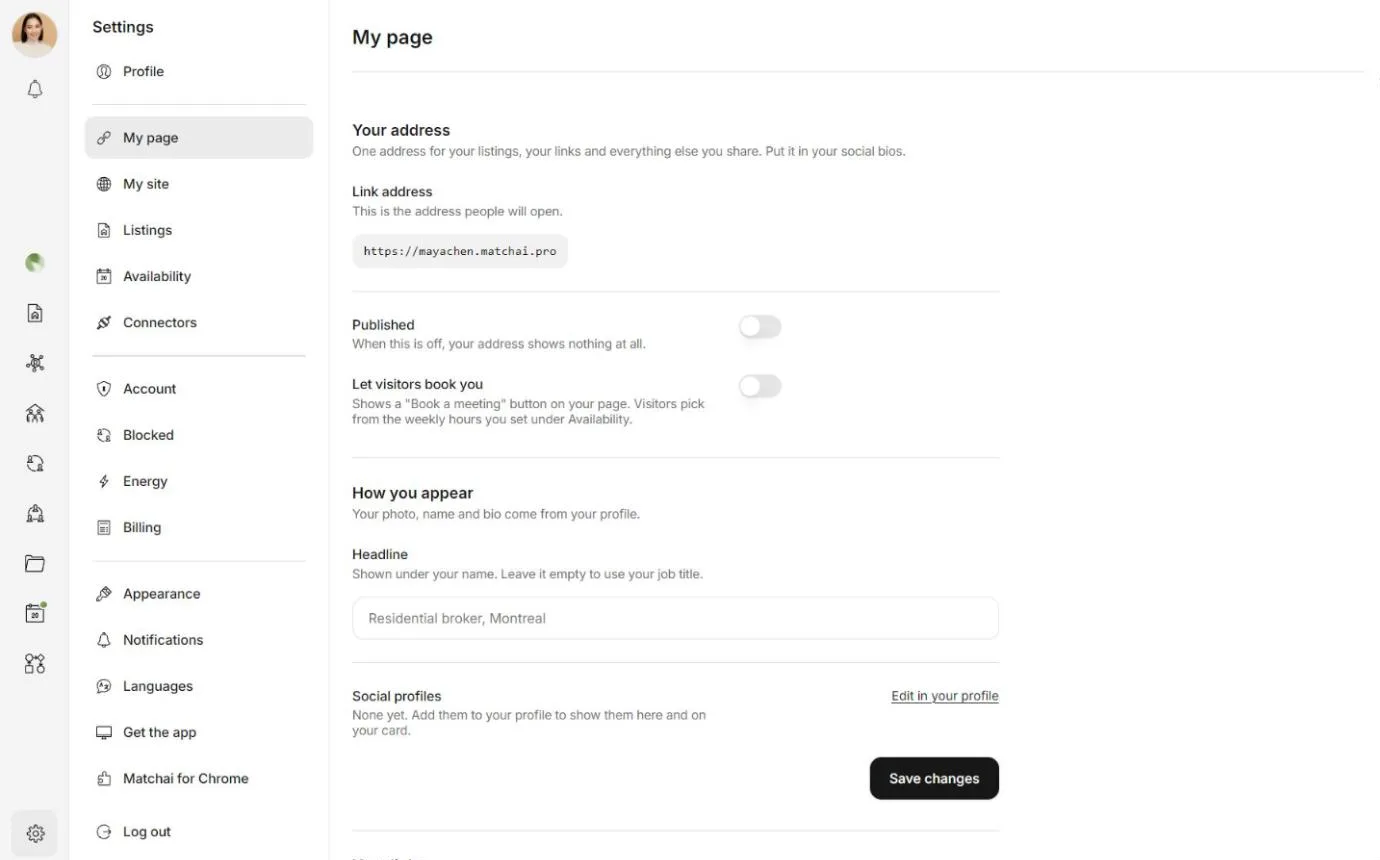
Open Settings, then My page.
Under Your address, check the Link address. This is the address people will open.
Turn on Published. Matchai confirms with Your page is live.
You can also publish it from the menu: select your profile picture, then My page, and turn on Published.
To hide your Page again, turn Published off. Your address then shows nothing at all, and your links, files and settings stay as they are.
If Matchai says your username cannot be used as a web address, change your username in Settings → Profile. Your Page can be published once it has a username that works as an address.
Why it works this way
Your Page's address comes from your username, so you never have to choose a second name. Because a username can contain an underscore and a web address cannot, jane_doe becomes jane-doe.matchai.pro. If you change your username, your Page's address changes with it, and the old address stops working.
Choose how you appear
Your photo, name and bio come from your profile. Change them in Settings → Profile, and both your Page and your business card show the new version. See set up your profile.
Two things are set in Settings → My page, under How you appear:
- Headline. A short line shown under your name, such as "Residential broker, Montreal". Leave it empty to use your job title. Choose Save changes when you are done.
- Social profiles. The ones you have added appear here. To add or change them, choose Edit in your profile. They show on your Page and on your card.
Add your links
A link can go anywhere: a booking form, a video tour, a market report, your brokerage's page.
In Settings → My page, go to Your links.
Under Add a link, type a name people will recognise, such as "Book a viewing", and the address it goes to.
To show a small picture beside it, paste the address of an image in Thumbnail image URL (optional).
Choose Add.
Your links appear on your Page in the order of the list. For each one, you can:
- move it with the up and down arrows,
- hide it for a while with its Show this link switch, without losing it,
- delete it with the bin button.
Once people start using a link, the number of clicks appears under its name.
Add files
Files you add to your Page can be downloaded by anyone who opens it. A floor plan, a buyer's guide or a price list are good examples.
Everything here is public
Do not upload anything private, such as a signed contract, an identity document or a client's information. Anyone with your Page's address can download what you add.
In Settings → My page, go to Files.
Under Add files, choose Choose files and pick one or more files.
Your files also appear in your Matchai Cloud, under Matchai Page. To take a file off your Page, select its bin button. It stays in your Matchai Cloud. See Matchai Cloud.
Files can only be downloaded while your Page is published.
Let visitors book a meeting
Visitors can ask for a meeting with you without leaving your Page.
Set the weekly hours you are available in Settings → Availability, and make sure Available is on.
In Settings → My page, turn on Let visitors book you.
Your Page now shows Book a meeting with your first name. A visitor chooses How long, When and What time, can add a note, then chooses Request this time. Nothing is confirmed until you accept.
The times offered are your hours, in your time zone. When the visitor is somewhere else, the booking window says which time zone the times are in.
Set your hours first
If you have not set any hours, your Page offers every time of day, including the middle of the night. My page warns you when this is the case, with a link to Set your weekly hours.
Share your Page
Select your profile picture, then My page. The window shows how your address looks in a social bio, an email or a text message.
- Send my page opens your phone's share options, or a list of apps on a computer. It works once your Page is published.
- View my page opens your Page in a new tab, so you see exactly what visitors see.
You can also copy the address from Settings → My page, under Link address, and open it with Open.
When someone taps Message on Matchai, they continue on Matchai, where they can talk with you even without an account. See conversations with guests.
Why it works this way
Your Page and your Matchai Site are separate on purpose. Your site is a website made of many pages, one for each listing, for people who want to browse. Your Page is one page for people who found you on social media and want everything in one tap. They have different addresses, .co for your site and .pro for your Page, so you always know which one you are sharing.