Your Matchai Site
Create your own website of listings at yourname.matchai.co, publish it, change its address and share it with clients.
Your Matchai Site is your website. It shows every listing you publish, each on its own page, at an address such as jane.matchai.co. You need a professional account to create one, and each professional has one site.
Create your site
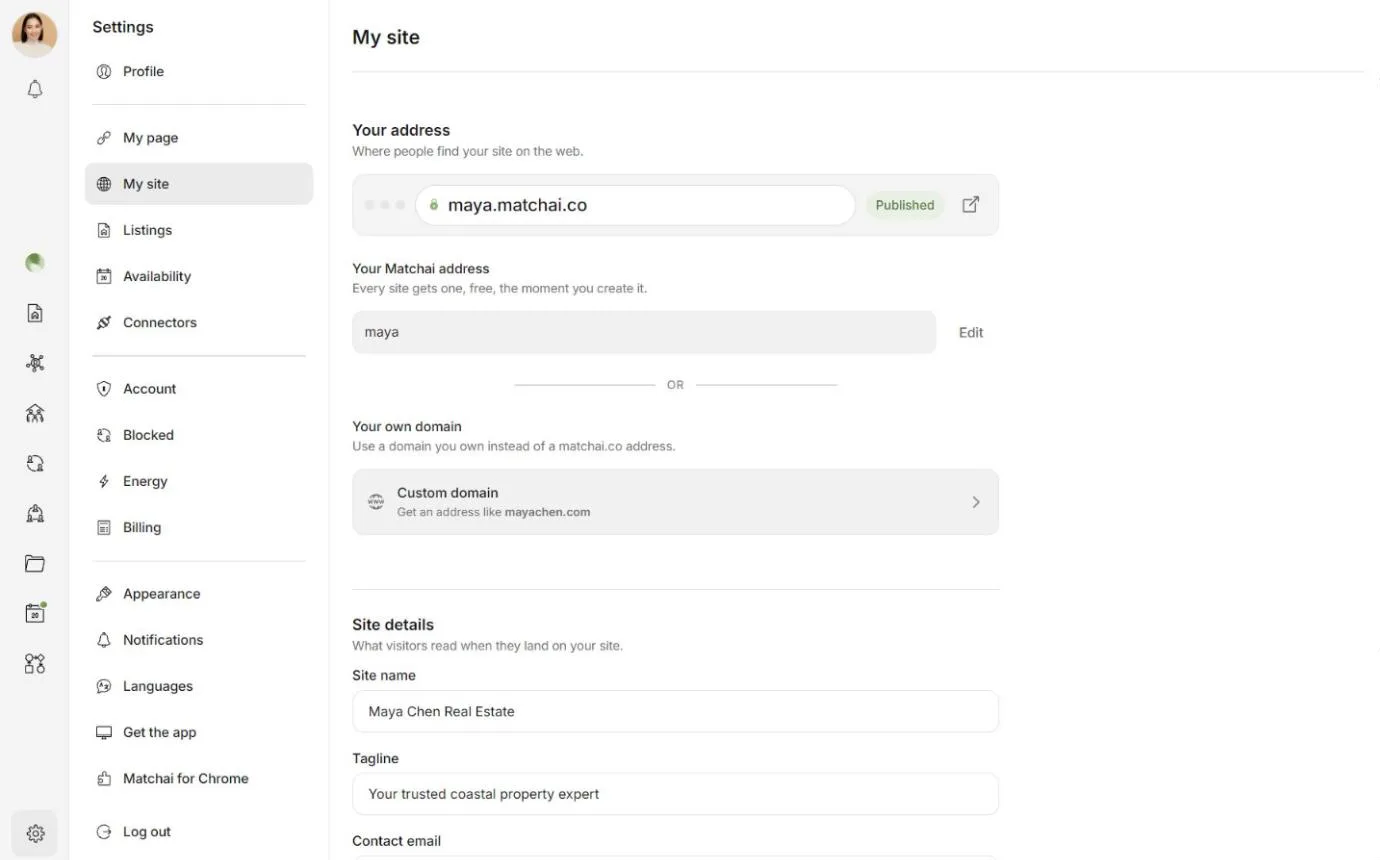
Open Settings, then My site.
Under Your address, check Your Matchai address. Matchai suggests one based on your username. To use a different one, type it in the field. It needs at least 3 characters: lowercase letters, numbers and hyphens.
Wait for the check mark beside the field. It means the address is free. If it says This subdomain is not available, try another one.
Under Site details, fill in Site name, Tagline, Contact email and Contact phone. You can leave them for later.
Choose Create site.
Your Matchai address is free. It is part of every site from the moment you create it.
Publish your site
A new site is a draft. Only you can see it, and the address bar at the top of My site shows a Draft badge.
- To look at it before anyone else does, choose Preview under Publishing.
- When it is ready, choose Publish site. The badge turns to Published, and anyone with the address can open it.
- To take it offline again, choose Unpublish. Visitors then see a page saying the site does not exist or has not been published yet. Your listings and settings stay as they are.
Why it works this way
A site starts as a draft so you can check it before the people you work with see it. While it is a draft, selecting your address in My site takes you to the Publishing controls rather than opening a page nobody else can see yet.
What appears on your site
- Your published listings. When you publish a listing, it appears on your site automatically. Listings you published before you created your site are added when you create it. See publish a listing.
- A page for each listing. Each listing has its own address on your site, such as
jane.matchai.co/3-bedroom-condo-plateau. Without a site, your listings have no public page, which is why the listing editor asks you to create your site to get a public URL. - Your site name and tagline. They are what visitors read when they arrive, and what search results show.
- Ways to reach you. Visitors can save the listings they like and message you from your site.
Changes show up on their own. When you edit a listing, add photos or publish something new, the site updates for anyone who has it open.
Why it works this way
When you delete a listing, its address on your site is released. You can give that same address to another listing later, for example when a property comes back on the market. The old address does not lead to the deleted listing any more.
Edit your site
Open Settings → My site, change what you need under Site details, then choose Save changes. On a phone, the Save button stays at the bottom of the screen.
Change your Matchai address
In Settings → My site, choose Edit beside your Matchai address.
Type the new address. Wait for the check mark, then choose Save.
Matchai shows Change subdomain?, with your old address and your new one. Read it, then choose Change subdomain.
Old links stop working
Changing your address breaks every link to the old one. Anyone who opens it sees a "not found" page. Update your email signature, your social profiles and anything you have printed. Visitors who have your site open are moved to the new address.
Share your site
- Copy the address. In Settings → My site, select the address at the top. It shows Copied when it is on your clipboard. The button beside it opens your site in a new tab.
- From the menu. Select your profile picture, then My site. It reads My site (Preview) while your site is a draft.
- From your other pages. Once your site is published, your Matchai Page and your business card both link to it.
- In the directory. Published sites are listed under Broker websites, at
matchai.co/sites.
Want an address of your own, such as listings.yourcompany.com? See use your own domain.