WorkflowsIn closed beta
Automations that run on their own. A lead email arrives, Matchai reads the lead out of it and adds the contact to HubSpot.
A workflow is an automation you set up once. After that, it runs on its own every time something happens.
For example: a lead inquiry lands in your inbox. Matchai reads the lead's name, email, phone and what they are asking for, then creates the contact in your HubSpot account. Nobody copies anything by hand, and no lead sits waiting in your inbox.
Where to find it
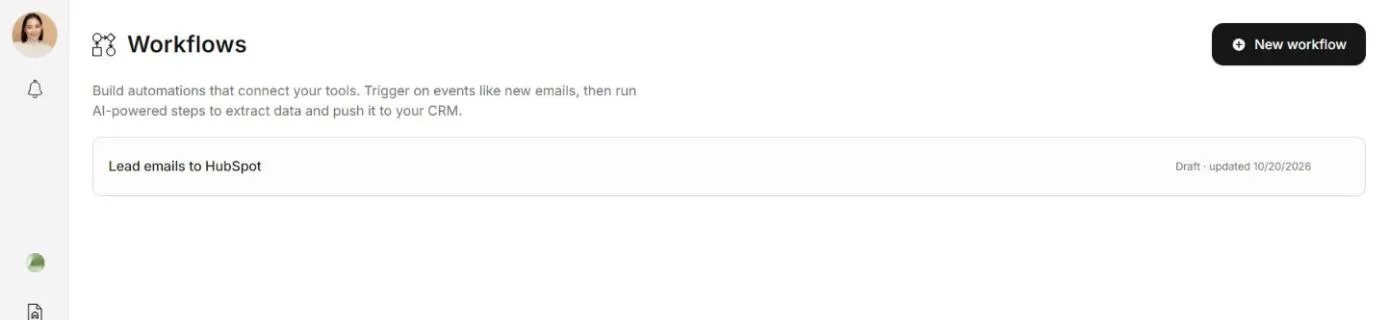
Choose Workflows in the sidebar. The page lists your workflows. Each one shows Active when it is on and Draft when it is off. Choose New workflow to build one.
If you do not see Workflows in your sidebar, it is not open on your account yet.
How a workflow is put together
A workflow is a line of steps on a canvas, joined one after the other.
- A trigger starts it. Today the trigger is When email is received: a new email arrives in your Gmail or Outlook inbox.
- Actions follow. Each action works on what the step before it produced. Analyze reads the email and pulls out the lead's details. Create HubSpot contact sends those details to HubSpot.
The contact is created in HubSpot. A workflow does not add it to your Matchai contacts.
For what each step does, see Triggers and actions. To build one, see Build a workflow.
A workflow is not the assistant
The Matchai Assistant works when you ask it to, and it asks you before it changes your work or contacts anyone. A workflow works without you. Once it is on, it handles every new email that matches it, even while you are signed out.
Why it works this way
A workflow does the same thing to every email that matches it, with nobody watching. So it does nothing until you turn it on. Before that, you can try it with a sample email and see exactly what it would create, without sending anything to HubSpot.
What it needs
A workflow reaches your inbox and your CRM through Matchai Connectors. You connect each service once, in Settings → Connectors, and every workflow can use it.
- Gmail or Outlook (Email), for the When email is received trigger.
- HubSpot, for the Create HubSpot contact action.
Connectors have a monthly price of their own. See Matchai Connectors.
What it costs
The steps that use AI use Matchai Energy every time they run:
- Analyze, to read the email.
- Create HubSpot contact, to fill in your HubSpot fields, and a little more when it also attaches a note to the contact.
The email trigger uses no Energy. Tests use Energy too, because the AI steps run for real in a test.
When a workflow runs on its own, the Energy comes from the person who turned it on. If that person runs out, the run stops at the AI step and says you are out of Matchai Energy. Once there is Energy again, new emails run as usual.