Matchai Connectors
Connect Google Calendar and other services to Matchai, what each connector lets Matchai do, what it costs, and how to disconnect it.
A connector links Matchai to a service you already use, so the two can work together. You find them all in Settings → Connectors, grouped under Email, Calendar and CRMs.
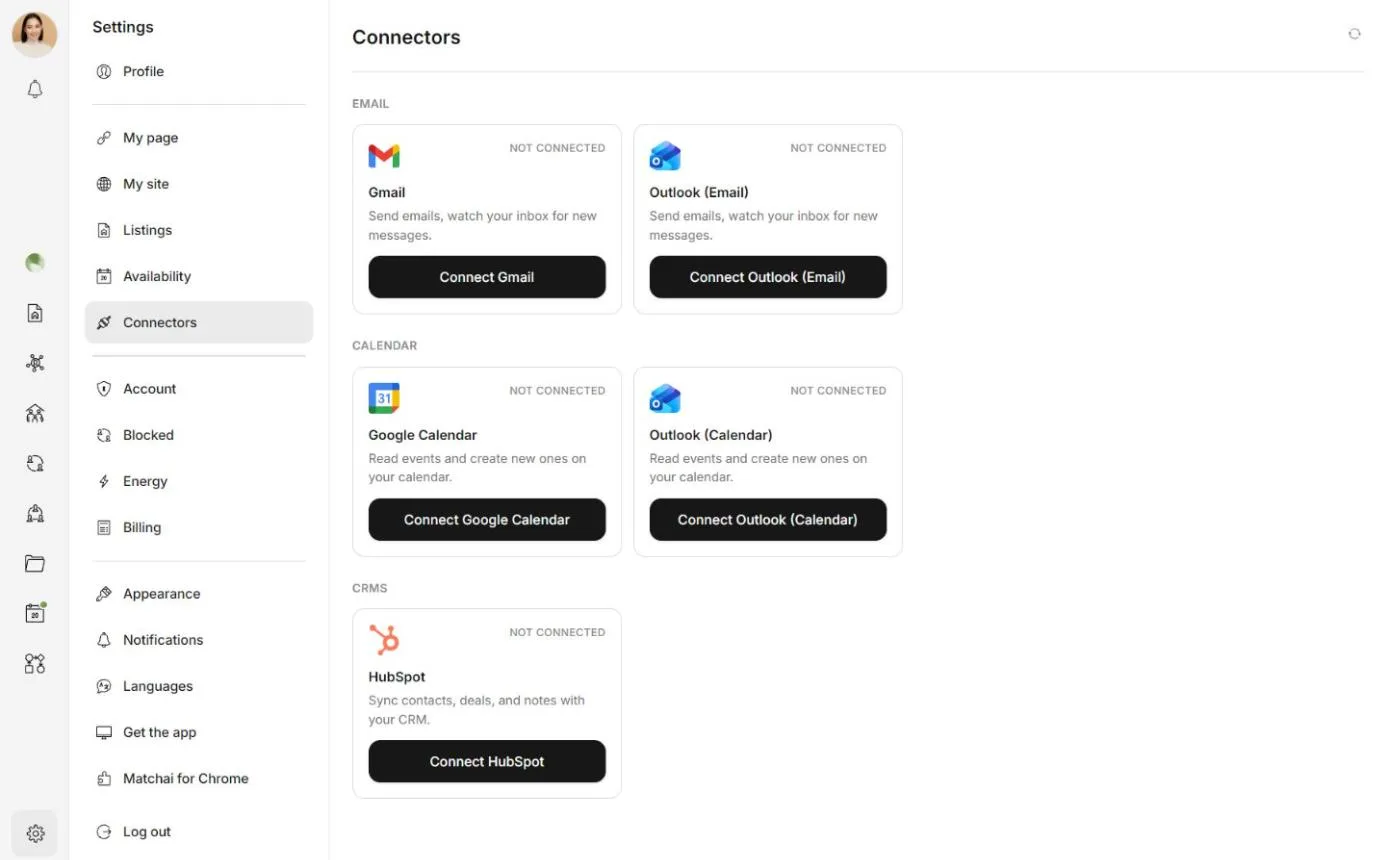
Each card shows whether the service is Connected or Not connected. Once connected, the card shows the account you linked.
What each connector does
Google Calendar
Google Calendar keeps your Matchai availability and your Google Calendar in step. Once it is connected, two switches appear in Settings → Availability:
- Block times I'm busy in Google Calendar. Matchai stops offering appointment times when you are already busy in Google Calendar. Only your free and busy times are read, never what your events are about. An event marked Free in Google Calendar blocks nothing, and all-day events count as Free unless you change them.
- Add my appointments to Google Calendar. Your confirmed appointments appear in a separate calendar called Matchai, which Matchai creates in your Google account. Your existing calendars are never touched. When an appointment changes in Matchai, the event changes too.
Both switches only appear once Google Calendar is connected. For how appointments and availability work, see Calendar.
Gmail and Outlook
In closed betaGmail and Outlook (Email) let a workflow start when an email arrives. In Workflows, the When email is received step watches your connected inbox and starts the workflow when a new message matches your filter, for example emails from one sender or about one subject. Leave the filter empty and every new email starts it.
Only emails that arrive after you connect are picked up. Older emails in your inbox are left alone.
HubSpot
In closed betaHubSpot lets a workflow send your leads to your HubSpot account. The Create HubSpot contact step creates a contact, matched by email address. If HubSpot already has a contact with that email, it is updated instead, and two leads with the same name but different emails stay separate contacts. The step can also add a note to the contact's timeline.
Connect a service
Open Settings → Connectors and find the service.
Choose Connect, followed by the service's name.
If you have no free connector slot, Matchai shows the monthly price and asks you to confirm. Choose Continue. The first time, you go to a secure checkout page to pay, then come back to Matchai. When it says your connector slot is ready, choose Connect again.
Sign in to the service in the window that opens and allow Matchai access. The card then shows Connected.
Connecting a service is not available in the Matchai app for iPhone and Android. Open Matchai in a web browser to connect one.
What connectors cost
Each connector is $5 a month. You pay for a connector slot, not for a particular service:
- Your first connector starts a monthly subscription.
- Each extra connector adds a slot to the same subscription. You pay a prorated amount for the rest of the current billing period, then the new monthly total.
- A slot is not tied to one service. Disconnect one service and connect another in its place without paying more.
Once you have a slot, the top of Connectors shows how many of your connector slots are in use, with a link to Manage in Billing.
Why it works this way
A connector keeps working for you all month long: it keeps your calendar in step and watches your inbox whether or not you are signed in. So it is billed monthly, connector by connector. You pay only for the services you actually connect, and nothing you leave off costs anything. Because you pay for the slot rather than for the service, trying a different service never costs you twice.
To stop paying, cancel connector slots in Settings → Billing. A cancelled slot keeps working until the end of the period you already paid for. See Energy and billing.
Disconnect a service
Open Settings → Connectors and choose Disconnect on the service's card.
Read the message, then choose Disconnect to confirm.
What changes when you disconnect:
- Workflows that use this connector stop working until you connect it again.
- For Google Calendar, Matchai stops reading your busy times and removes the Matchai calendar it created from your Google account.
- The access you gave Matchai stays listed in your Google, Microsoft or HubSpot account. To remove it there too, revoke it from that account's security or connected-apps settings.
- Your connector slot is freed for another service. Disconnecting does not cancel your subscription. To stop paying, cancel the slot in Settings → Billing.
Reconnect needed
If you remove Matchai's access from the service's side, the card shows Reconnect needed, and anything that relied on it stops working. Choose Disconnect, then connect the service again. Your slot is reused, so this costs nothing extra.