StudioIn closed beta
Turn a listing's photos into a short video for the top of the listing page, and sharpen, retouch or virtually stage the photos themselves.
Studio is where you make your listing media look its best. Pick a few photos of a listing, and Studio turns them into a short, cinematic video that plays at the top of the listing page. For the photos themselves, the Matchai Assistant can sharpen a soft shot, retouch one, or furnish an empty room.
Who has Studio
Studio is in closed beta. It is switched on for a small group of professionals while it is being finished. If you do not see a Studio button on your listings, it is not on for your account yet.
Photo edits and virtual staging are done by the Matchai Assistant. If Assistant is in your sidebar, you can use them.
Open Studio
- From a listing. Open the listing and select Studio at the top. The button shows when you are not in edit mode. On a phone, it shows as an icon.
- From Listings. On a computer or a tablet, select Studio at the top of Listings, next to Share. When you start a video, Studio asks you to Choose a listing.
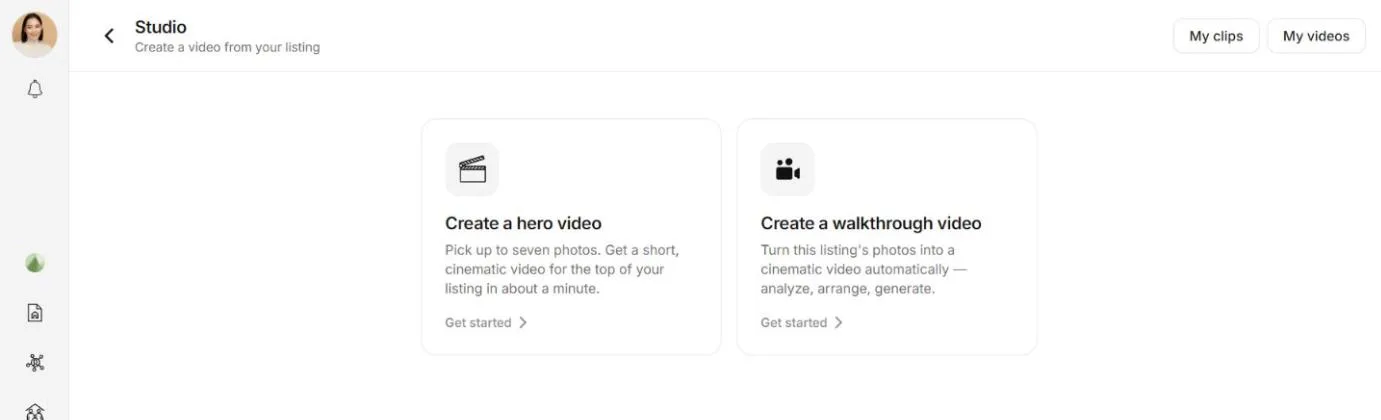
Studio opens on Create a hero video. My videos and My clips, at the top, hold everything you have made. If a video for the listing is rendering or ready, a banner says so, such as Your video is rendering… or Your video is ready. Select it to see the progress or the result.
Studio works on listings you can edit.
What you can make
| What | What you get | Where |
|---|---|---|
| A hero video | Three to seven photos, each turned into a few seconds of smooth camera movement, cut into one silent video. It plays on a loop at the top of your listing page. | Studio |
| A video from saved clips | The best clips from your videos, put together into a new one. | Studio → My clips |
| A sharper or retouched photo | A crisper version of a small photo, or a photo with the clutter cleared, the sky replaced, the light opened up, and more. | Assistant |
| A virtually staged room | An empty room, furnished in the style you choose. | Assistant |
See photos and video and AI staging for how each one works.
What it costs
Studio's AI work uses Matchai Energy.
- A hero video uses the most. The more photos you pick, the more it uses. Matchai sets the Energy aside when the video starts and gives back whatever the video did not need when it finishes.
- A sharper quality for a finished video (1080p or 2K) uses Energy once for each length you make. 2K uses more than 1080p. Going back to a version you already made is free.
- A photo edit or a staged room uses a little Energy. The assistant tells you how much before it starts and waits for your yes.
Many things are free: changing how long each photo stays on screen, adjusting the phone version, editing a video, finishing a stopped video from its clips, making a video from saved clips, downloading, and putting a video or a photo on your listing.
If you do not have enough Energy, Studio tells you how much the video needs. When fewer photos would fit, it says how many. On the web, the message offers Top up.
Why it works this way
A video is made one photo at a time, so it costs what it renders. If you stop it partway, or it stops on its own, you pay only for the photos that were finished, and the rest comes back to you. Everything that only reuses what is already made, such as re-cutting, reframing or editing, is free, so you can get a video right without paying twice.
Where your work is kept
Every finished video is saved in My videos, and every clip you keep is in My clips. Finished videos and the photos your assistant edits are also kept under Studio in Matchai Cloud.
A finished hero video goes straight to the top of the listing it was made for. That is the only thing Studio puts on a listing by itself. Other videos, and the photos your assistant edits or stages, go on a listing only when you choose to add them.
Photos and video
Make a hero video, change its length and quality, frame it for phones, edit it, and sharpen or retouch photos.
AI staging
Furnish an empty room, compare it with the original, and add it to your listing with a clear label.
Photos and media
Manage a listing's photos and videos in the media manager.