Notifications
What Matchai tells you about, where you see it, how to act on a notification, and how to turn push notifications on or off.
Matchai tells you when something needs your attention: a new message, a new lead, a viewing request, an answer to your invitation. You see it inside Matchai and, if you turn them on, as push notifications on your phone and computer.
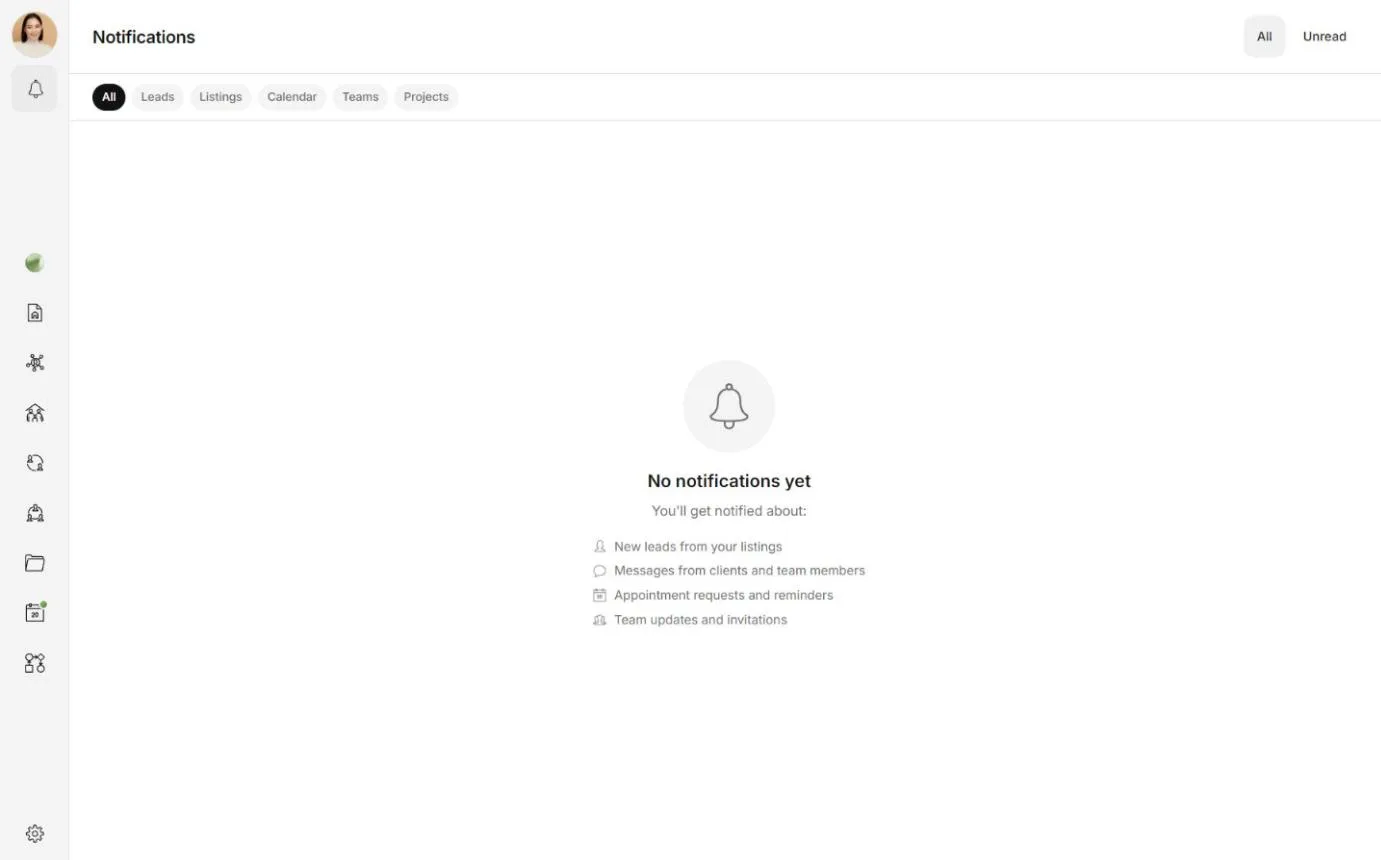
What you are notified about
- Messages. A new message in any of your conversations, with the sender and the start of the message.
- Leads and contacts. Someone reaches out to you, saves one of your listings, or connects with you from your business card.
- Appointments. A new request, a confirmation, a decline, a cancellation, or a new time proposed. Appointments and viewings lists who is told what.
- Listings. A listing you have access to is published or changes status. Everyone who has access is told, except the person who made the change. You are also told when a listing is handed over to you and you become its agent.
- Teams and projects. An invitation to join, with Accept and Decline, and the answer to an invitation you sent. You are also told when an invitation you sent expires.
- Energy. Someone gifts you Energy.
Where you see them
In the workspace, Notifications sits in the menu, with a dot when something is unread. On a computer, point at it to see your latest notifications, with Mark all as read and View all notifications. Select it to open the full list. On a phone, the bell is in the header. Tap it again to go back to where you were.
With a regular account, the bell is in the header of the site, and your notifications have their own page in your account.
While Matchai is open, a new notification also appears for a few seconds at the edge of the screen. Select it to open what it is about. When a message arrives in the conversation you are reading, Matchai shows no notification and marks it read for you.
On the app icon, an installed Matchai app shows how many notifications you have not read yet, on devices that support it.
The notifications list
At the top of the list, choose All or Unread. In the workspace, the row below narrows the list to Leads, Listings, Calendar, Teams or Projects, with the number of unread notifications in each.
- Open one. Select a notification to go to what it is about, such as the conversation, the listing or the appointment. Opening it marks it read. A notification that only informs you, such as a cancelled appointment, opens nothing.
- Mark as read. Select the dot on a notification. On a phone, you can also swipe it. To clear everything at once, choose Mark all as read.
- Mark as unread or delete. Right-click a notification, or press and hold it on a phone, then choose Mark as unread or Delete.
Act without leaving the list
Some notifications carry buttons, so you can answer straight away.
- A new appointment request checks your calendar for you and says No conflicts, or which appointment it Conflicts with. Accept confirms the appointment in place, and the button then reads Accepted. Reschedule opens it so you can propose another time.
- An invitation to a team or a project has Accept and Decline.
If you already answered from somewhere else, such as your calendar, the notification shows the answer instead of the buttons.
Push notifications
Push notifications reach you even when Matchai is closed. Install the app explains how to turn them on for each device, and what to do if your device blocked them.
To turn them on or off later, open Settings, then Notifications, and use the Push notifications switch. With a regular account, Notifications is in the Preferences section of Settings.
- Send test notification sends a notification inside Matchai and one to your devices, so you can check that both arrive.
- If your device blocked notifications, the setting says Notifications are blocked on this device. Choose Learn how to re-enable for the steps on your device.
- On an iPhone or iPad, push notifications work only in the installed app.
Why it works this way
The Push notifications switch belongs to your account, so turning it off stops push notifications on all your devices at once. Your notifications still appear inside Matchai, so nothing is lost while it is off. Turning it on from a device also asks that device for its permission, because each phone and browser decides for itself whether it may show notifications.
Email and text messages
In closed betaSettings → Notifications also has two more switches.
Email notifications. A push notification can fail to arrive, for example when a phone has been offline for a long time. When Matchai sent you a push notification about a new message, the push did not arrive, and the message is still unread about two hours later, Matchai emails you about it, so a client's message does not go unnoticed. Matchai never emails you about a message more than a day old. Turn the switch off to stop these emails.
SMS notifications. Matchai can also text you when a message or an appointment is waiting for you and you have not seen it after a few minutes. Texts go to the mobile number you confirmed with a code. They are off until you turn this switch on.