Your calendar
See your appointments by day, week or month, answer requests, and connect Google Calendar so the times you are busy there are never booked.
Your calendar holds every appointment you have in Matchai: the viewings people request from your listings, the meetings you create, and the requests that come from your conversations. Open Calendar in the workspace menu.
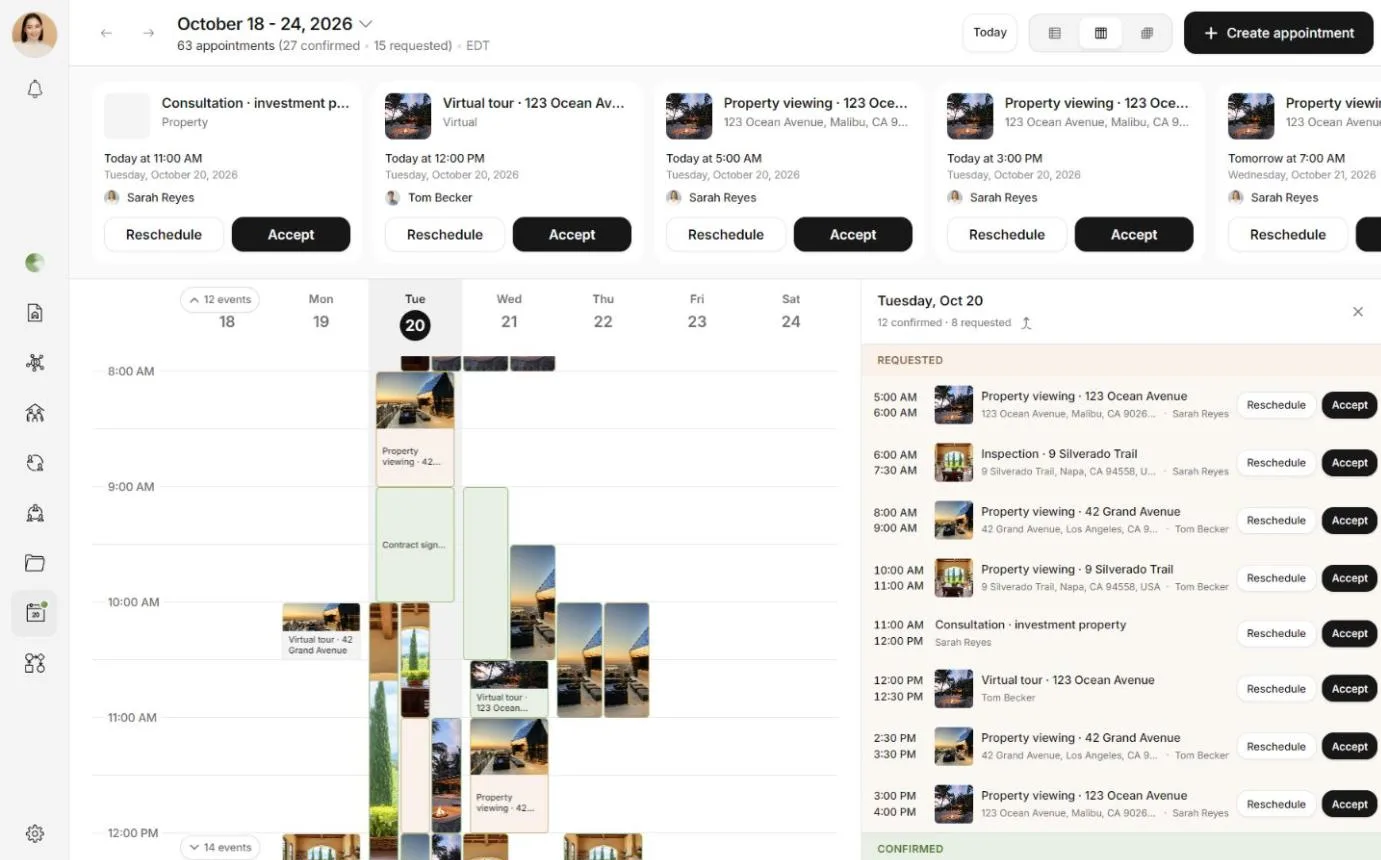
Day, week and month
Three buttons at the top of the calendar switch between the day, week and month views. On a phone they sit in the header. You can also tap Calendar in the tab bar again to move to the next view.
- The arrows move one day, week or month back or forward. Today brings you back to today. On a phone, swipe left or right in the day and week views.
- Under the date, Matchai counts the appointments in view. On a larger screen, it also says how many are confirmed and how many are still requested, and which time zone your times are in.
- The calendar remembers the view and the date you were looking at, so it opens where you left it.
If you are somewhere with a different time zone from the one you saved, the calendar offers to show your appointments in local time. Choose Use current timezone to switch, or Keep my setting to stay as you are.
Look at one day
Select a day to open its details. Appointments that are waiting for an answer are listed under Requested, and the others under Confirmed. When a day has both, Merge timeline puts them in one list, in time order.
Select an appointment to see all of it: the time, the place, the listing, who is coming and any notes, with the actions you can take. Appointments and viewings explains each action.
To create an appointment, choose Create appointment. On a phone, use the + button in the header.
Appointment requests
Requests waiting for your answer appear in a row above the calendar. The row opens by itself when you have requests in the period you are looking at. Select the date at the top of the calendar to show or hide it.
Each request shows the time, the listing and the person who asked. Accept confirms it. Reschedule proposes another time. To decline, open the request and press and hold Decline.
What each status means
| Status | What it means |
|---|---|
| Requested | Someone asked for this time and is waiting for an answer. The time is held for them, so nobody else is offered it. |
| Confirmed | The appointment is agreed. |
| Reschedule pending | Someone proposed a new time. The agreed time stands until the other side accepts. The calendar shows both times until then. |
A declined or cancelled appointment leaves your calendar, and its time becomes free again.
Connect Google Calendar
If you also keep a Google Calendar, you can connect it so the two never contradict each other. Connect it in Settings → Connectors, as described in connectors. Once it is connected, two switches appear in Settings → Availability.
Block times I'm busy in Google Calendar. The times you are busy in Google Calendar are no longer offered to anyone who books you. They also appear in your Matchai calendar, in their own section titled Blocked in Google Calendar and marked Unavailable, so you see your whole day in one place. Matchai checks again whenever you open the calendar or change view.
Add my appointments to Google Calendar. Matchai creates a calendar named Matchai in your Google account and puts your appointments in it, so they show up in the calendar app you already use. A request you have not accepted yet appears there too, without making you look busy. When an appointment moves or is cancelled in Matchai, the event in Google Calendar follows. Each event links back to the appointment in Matchai.
You can use either switch without the other. Both are on when you first connect.
What counts as busy
Only the times you are marked busy in Google Calendar count. Matchai never sees the title, the people or the place of a Google event.
- An event you marked Free in Google Calendar does not block anything.
- Google Calendar creates all-day events as Free unless you change them. If an all-day event should block your day, such as a vacation, mark it Busy in Google Calendar.
- A busy block lasting a whole day shows above the time grid as All day, instead of filling the day from top to bottom.
Why it works this way
Matchai asks Google for your free and busy times only, never for your events themselves. That is enough to stop a double booking, and it means a client's name or a private appointment in your Google Calendar never reaches Matchai. The same holds the other way: Matchai writes only to the Matchai calendar it created. Your existing calendars are never read, moved or changed.
If access stops working
If Google Calendar access is revoked, the connector shows Reconnect needed, and Settings → Availability tells you the Google Calendar settings are not doing anything until you reconnect. Reconnect it in Settings → Connectors.
If you disconnect Google Calendar, Matchai removes the Matchai calendar it created from your Google account, with all its events.