Your availability
Set your weekly hours and date overrides, choose when each listing can be shown, and see how visitors pick an open time.
Your availability decides which times people can book with you. It applies everywhere someone can ask you for an appointment: a listing's Request tour button, a request from a conversation, and the Book a meeting button on your Matchai Page.
How open times are worked out
When someone books, Matchai starts from your hours and takes away everything that is already spoken for. A time is offered only when all of this holds:
- It is inside your Weekly schedule, after your Date overrides for that day.
- For a listing, it is also inside that listing's showing hours.
- It does not overlap an appointment already on your calendar, confirmed or still requested.
- It does not overlap a time you are busy in Google Calendar, if you turned on Block times I'm busy in Google Calendar.
- It has not already passed today.
Times start every five minutes, and a time is offered only when the whole appointment fits in the open time that follows it.
Set your weekly hours
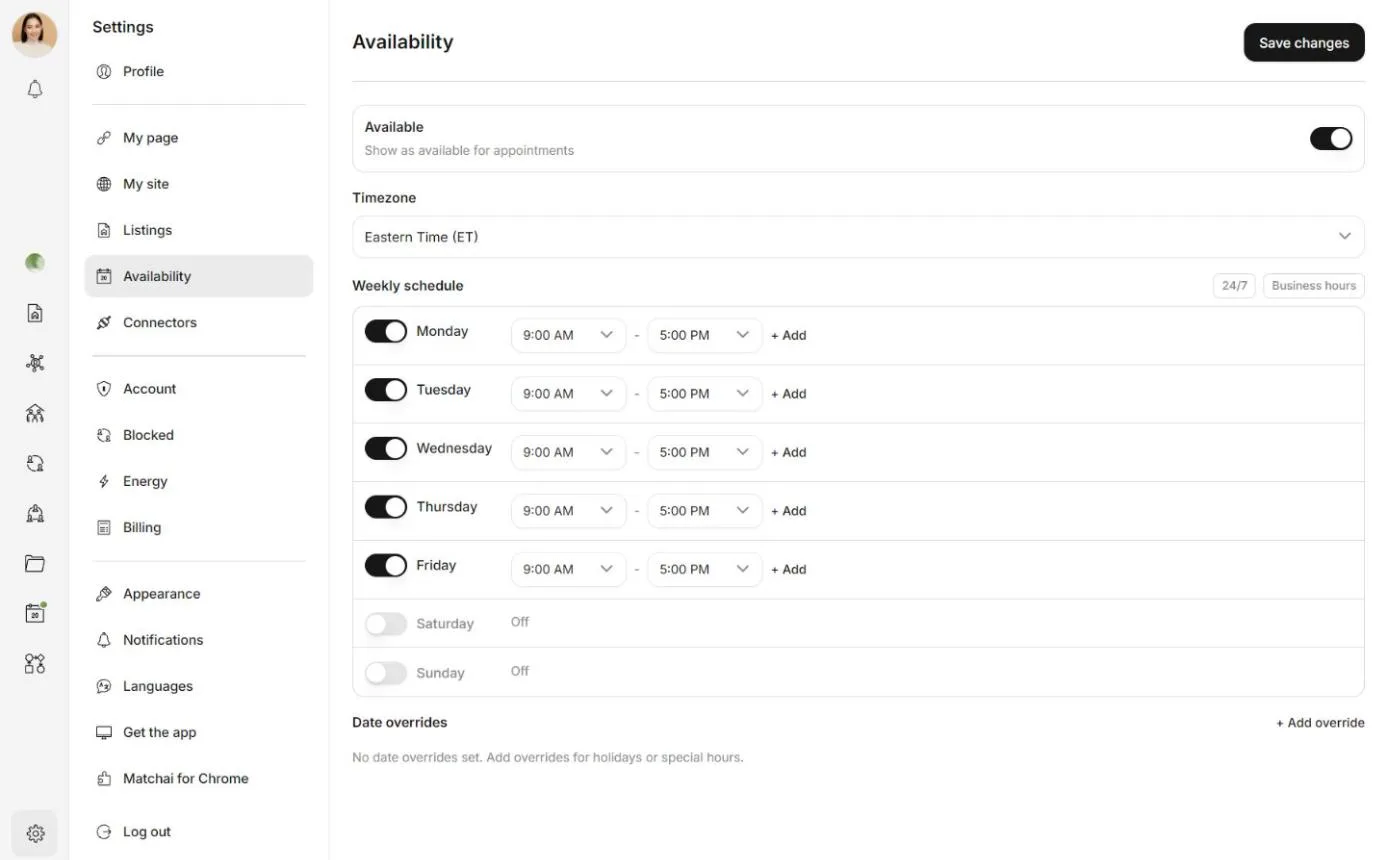
Open Settings, then Availability.
Make sure Available is on. It means Show as available for appointments.
Choose your Timezone. Your hours, and the times people see, are in this time zone.
Under Weekly schedule, switch on each day you work and set its start and end times. To split a day, for example around lunch, choose + Add and set a second period. Days you leave switched off say Off.
For a quick start, Business hours sets Monday to Friday, 9 to 5, and 24/7 opens every day around the clock. You can adjust either afterwards.
Choose Save changes.
Save your hours before you take bookings
Until you save a weekly schedule, Matchai has no hours to go by, so anyone booking you can pick any time of day, including the middle of the night. Availability says You haven't set your hours yet while this is the case. Settings → My page shows a similar warning when you let visitors book you from your Page.
Stop taking appointments
To stop all bookings, for a vacation or a busy month, turn off Available and choose Save changes. Nobody is offered a time until you turn it back on. Your existing appointments stay as they are.
Why it works this way
Switching off every day of the week does not close your calendar. A week with no hours at all is read as "no hours set yet", which means no limits. So Matchai refuses to save a week with every day switched off while Available is on, and points you to Available instead. That switch is the one that means "not taking appointments".
Change one day with a date override
A date override changes your hours for a single date, without touching your weekly schedule.
In Settings → Availability, under Date overrides, choose + Add override.
Pick the Date.
Choose Unavailable to block the whole day, or Available to add hours to it. With Available, set the start and end times.
Add a Reason (optional), such as a holiday, then choose Add.
Choose Save changes.
Hours you add with Available come on top of that day's usual hours. They do not replace them, so an override cannot shorten a day. Use Unavailable to take a day off, and Available to work longer or on a day you are usually off. Each date can have one override.
Choose when a listing can be shown
Each listing has its own showing hours. Visitors are offered the times when both the listing and you are available.
Open the listing and go to Showings. On a computer it is in the list of the listing's parts. On a phone, it is under More.
Turn on Allow showings. The listing's page now shows a Request tour button.
Under Weekly schedule, switch on the days the property can be visited and set the hours. Choose Add for a second period in a day.
Under Allowed durations, choose how long a visit can be, from 5 minutes to 2 hours. You can allow several lengths, and visitors choose one. At least one stays selected.
Your changes save as you make them, and a visitor who has the booking window open sees the new times straight away.
The times come from the availability of the listing's agent, the person shown under Listing agent. If you hand the listing to a colleague with Hand over listing, their availability is used from then on, along with their calendar.
Decide what happens before someone books
Under Showings, the Before someone books section sets what a visitor does before they see the calendar. Choose one:
| Option | What visitors do |
|---|---|
| Anyone can book | Visitors pick a time and you get the request. |
| Name and phone number | Visitors leave a name and a number you can reach them on. Matchai asks only for what it does not already know, so a signed-in visitor who has both goes straight to the calendar. |
| A few quick questions | Visitors answer a short set of taps before they can book. |
With A few quick questions, tick the questions you want to ask. Visitors answer up to the ones you pick, and often fewer, because a question that no longer applies is skipped. If you are not sure what to ask, describe what matters to you under Not sure what to ask? and choose Suggest questions. Then Use these or Keep mine.
Under What happens with the answers, you can choose Add a rule: if a question gets a given answer, confirm the request or decline it. Anything your rules do not decide follows Otherwise, send me the request to review.
Why it works this way
The questions come before the calendar, never after. A visitor you would turn away should not spend time picking a slot first. Visitors never see your rules either, only the questions, so nobody can learn which answers you decline and answer around them.
What visitors see
When a visitor chooses Request tour, the Schedule a viewing window opens.
- If you allowed more than one length, they choose a Duration first.
- Under Preferred date, days with no time left are greyed out.
- Under Available times, times are shown every 15 minutes. Selecting one also shows the five-minute times just after it, for a more precise start.
- The open times refresh every minute while the window is open, so a time that has just passed or just been taken disappears.
A time someone has requested is held for them while you decide, so the next visitor is not offered it. Appointments and viewings explains what happens after they send the request.