Set up your profile
Add your photo, name, bio, social profiles and professional details, choose your username, and see where each one appears.
Your profile is how clients and other professionals recognize you. If you have a professional account, you filled in part of it when you set the account up. You can change all of it at any time.
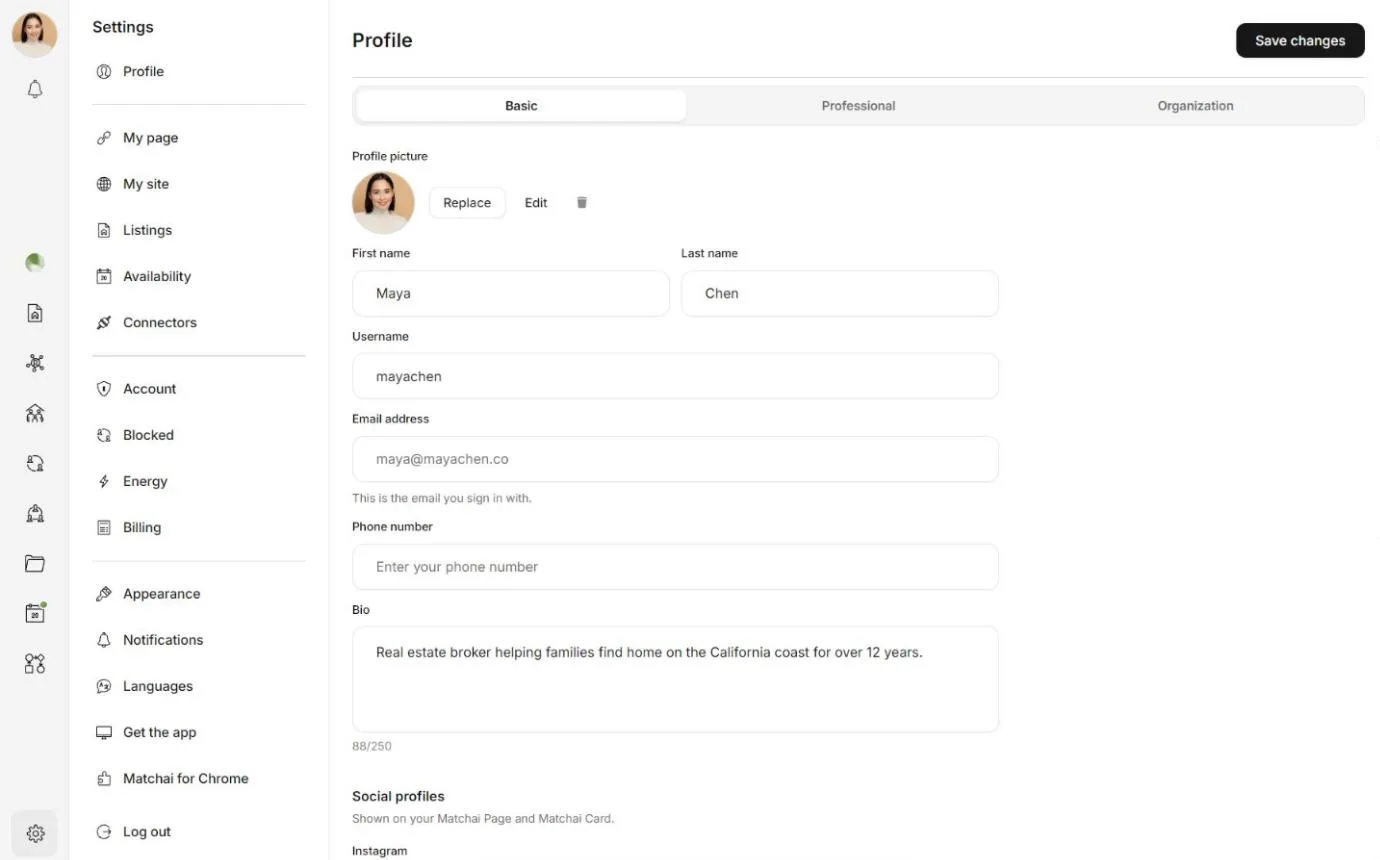
Open your profile
Select your profile picture, choose Settings, then choose Profile. On a phone, Settings opens a list of sections: choose Profile there.
Your profile has three tabs: Basic, Professional and Organization. When you have made your changes, choose Save changes.
What your profile contains
These are the fields of a professional profile. A regular account has the photo, name, username and bio.
| Tab | Field | What it is |
|---|---|---|
| Basic | Profile picture | Your photo. |
| First name, Last name | Your name, as clients see it. | |
| Username | Your handle. It becomes part of your web addresses. See choose your username. | |
| Email address | The address you sign in with. It is shown for reference and cannot be changed here. | |
| Phone number | Your phone number. | |
| Bio | A short description of you, up to 250 characters. | |
| Social profiles | Your Instagram, Facebook, LinkedIn, X, YouTube and TikTok profiles, and your website. | |
| Professional | Industry roles | What you do in real estate. You can choose more than one. |
| Job title | Optional, for example "Real estate agent". | |
| Board membership | The regulatory bodies you belong to, with your license number and license type. | |
| Organization | Organization | Your company, cooperative or other organization. |
| Website | Your organization's website. | |
| Office address | Where your office is. |
Add your profile picture
On the Basic tab, under Profile picture, choose Upload, or drop an image on it. Use a JPEG, PNG or WebP image of up to 20 MB.
To frame it, choose Edit. Drag the photo to move it, and use Zoom, Straighten and Rotate. Choose Apply.
Choose Save changes. Your new photo appears across Matchai.
To change your photo later, choose Replace. To remove it, use the remove button next to it, then save.
If you signed up with an account that has a profile photo, such as Google, your profile may start with that photo until you upload your own.
Write your bio
Your bio can be up to 250 characters. A counter shows how many you have used. If you paste a longer text, Matchai shortens it to 250 characters and tells you.
Add your social profiles
Social profiles are part of a professional profile, on the Basic tab under Social profiles.
For each network, type your username or paste the link to your profile. Matchai keeps the username and builds the full address for you. To check that a link works, hover over the field, or tap it on a phone, and open the link that appears.
Your social profiles appear on your Matchai Page and your Matchai Card. If one cannot be saved, Matchai tells you and keeps what you typed so you can fix it.
Add your professional details
Open the Professional tab.
Under Industry roles, choose each role that describes your work. Each one appears below the list. To remove one, select the cross next to it.
Add a Job title if you want one shown with your name.
To add a board membership, choose Add board membership and search for the regulatory body by its name or code. Then add your License number and License type. A board membership is saved as soon as you add it.
On the Organization tab, search for your organization. If it is not listed, choose the option to create it: it is added when you save. Then add its Website and your Office address, and choose Save changes.
Choose your username
Your username has 3 to 30 characters: lowercase letters, numbers and underscores. As you type, Matchai checks it and shows Username is available, or tells you that it is taken or reserved.
If you signed up with Google, Apple, Microsoft or your mobile number, Matchai chose a username for you. Check it before you share any of your addresses.
Why it works this way
Your username is part of your public web addresses, so it works like a domain name:
- Your Matchai Page opens at
yourname.matchai.proonce you publish it. - Your public profile is at
matchai.co/profile/yourname. - Your Matchai Card is at
matchai.co/c/yournamewhile it is public. - Your Matchai Site starts from it: when you create your site, Matchai suggests
yourname.matchai.co. You can choose a different address for the site, and the site keeps its address if you change your username later.
Web addresses cannot contain underscores, so an underscore becomes a hyphen in your Page address: the username jane_doe gives jane-doe.matchai.pro. Some names are reserved because Matchai uses them for its own addresses.
If you change your username, your Page, profile and card addresses change with it, and links that use the old username stop working. Update any link you have shared, such as the one in your social media bios.
Where your profile appears
| Where | What people see |
|---|---|
Your public profile, matchai.co/profile/yourname | Your photo, name, job title, organization, license number, bio and contact details, a button to message you, and a link to your site. |
| Your Matchai Page and Matchai Card | Your photo, your name and your social profiles. |
| Your Matchai Site and your listings | You, as the professional to contact. |
| Conversations, teams and projects | Your name and photo. |
The public profile of a regular account shows the photo, name, bio and the year the person joined Matchai.
When you are signed in and open your own public profile, an edit button takes you back to these settings.