Install the app
Add Matchai to your iPhone, iPad, Android phone or computer as an app, with no app store, and turn on push notifications.
Matchai works in your web browser, and you can also install it as an app. The installed app has its own icon, opens full screen, loads faster and can send you push notifications. There is no app store involved: you install it from your browser in a few taps.
Why it works this way
The app is Matchai itself, added to your device from your browser. You sign in with the same account and see the same listings, contacts and conversations on every device, whether you use the app or a browser tab.
Install from Matchai
Open matchai.co in your browser and sign in.
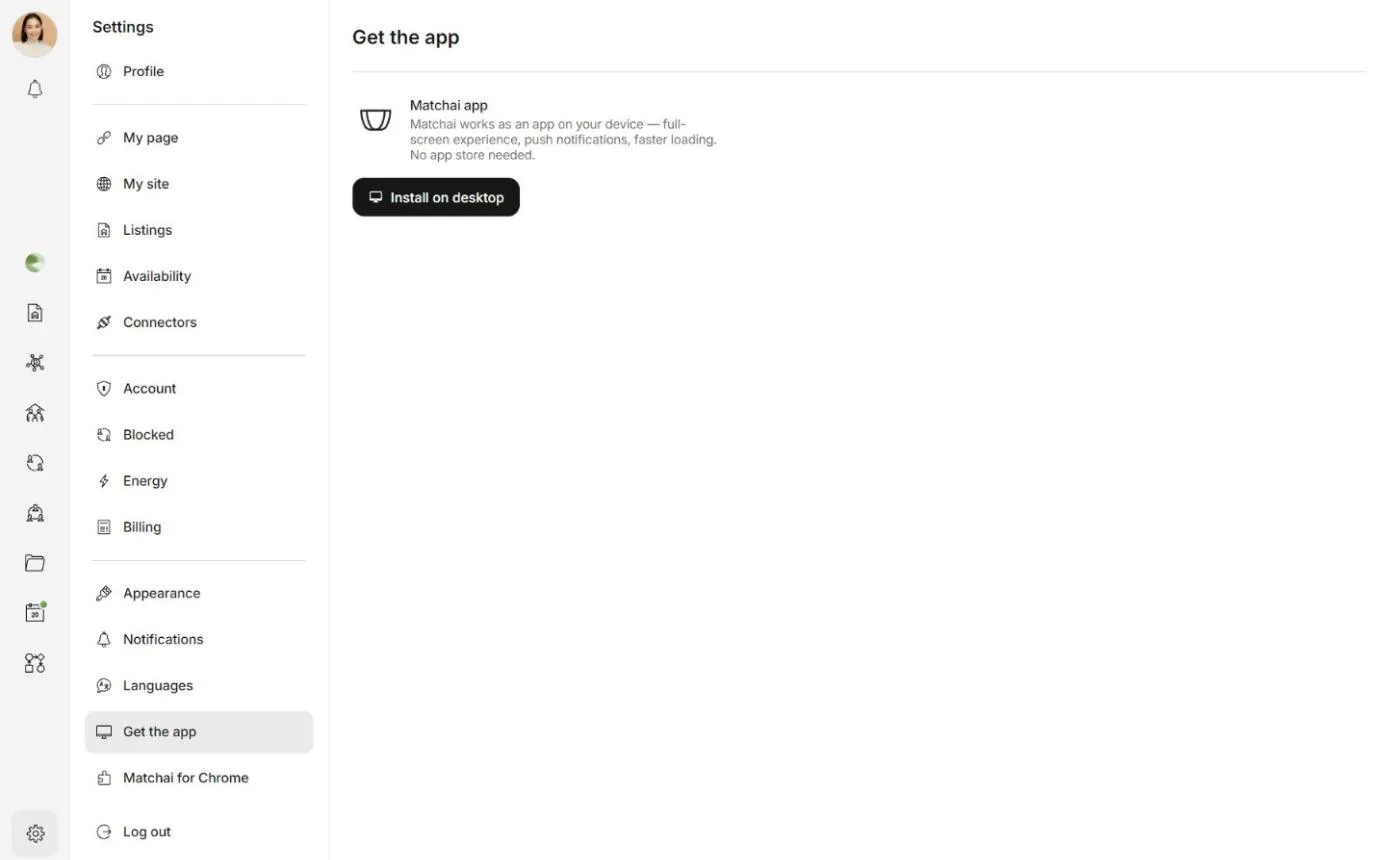
Open Settings, then Get the app. With a regular account, Get the app is in the Preferences section of Settings.
Choose Install on iPhone, Install on Android or Install on desktop, depending on your device.
Follow the steps Matchai shows for your browser. They are also below.
While you work, Matchai may also show a small banner offering the app, with Install and Later. On the matchai.co home page, an Install button sits next to Open app. Both start the same steps.
iPhone
On an iPhone, Matchai shows a short walkthrough, one step per screen, with each tap played on an illustrated phone. When you reach Your turn, choose Try it now: Matchai keeps the steps at the edge of your screen while you do them.
- Tap the ••• button at the bottom right of Safari, next to the address bar.
- Tap Share at the top of the menu.
- Tap Add to Home Screen. Scroll down the list if you do not see it.
- Leave Open as Web App switched on, then tap Add at the top right.
If your Safari shows a Share button in its toolbar instead, choose My Safari looks different in the walkthrough. Then tap Share, Add to Home Screen and Add.
Matchai then appears on your Home Screen. Open it from there and sign in.
iPad
- In Safari, tap the Share button in the toolbar.
- Tap Add to Home Screen.
- Tap Add.
Android
When you choose Install, Chrome usually asks right away. Confirm with Install.
If it does not ask:
- Tap the ⋮ button next to the address bar.
- Tap Install app. It may say Add to home screen or Install and create shortcut instead.
- Tap Install.
If your address bar is at the bottom of the screen, choose My Chrome looks different in the walkthrough.
Matchai then appears on your home screen and in your apps. To jump straight to your messages or listings, press and hold the Matchai icon.
Computer
- Chrome or Edge: click the install icon in the address bar, or open the browser menu and choose Install Matchai.
- Safari on a Mac: click the Share button in the Safari toolbar, choose Add to Dock, then Add.
Where the app opens
With a professional account, the app opens on your workspace. With a regular account, it opens on the websites of the professionals on Matchai. If you are not signed in, it opens the sign-in page first.
Turn on push notifications
Push notifications tell you about new messages and activity, even when Matchai is closed.
After you sign in, Matchai may ask Enable notifications. Choose Enable.
Your browser or device then asks for permission. Allow it.
If you choose Later, Matchai asks again in a week. You can also turn notifications on or off at any time: open Settings, then Notifications, and use the Push notifications switch. With a regular account, Notifications is in the Preferences section of Settings. To check that everything works, choose Send test notification.
On an iPhone or iPad, push notifications work only in the installed app. Install Matchai first, then turn them on from the app.
Why it works this way
The permission itself belongs to your browser or device, and once you block it there, Matchai cannot ask again. So Matchai asks first, in its own words, and only opens your browser's question when you choose Enable. If you blocked notifications by mistake, you turn them back on in your device or browser settings, as described below.
If notifications are blocked, the Push notifications setting says Notifications are blocked on this device. Choose Learn how to re-enable for the steps on your device. On an iPhone, for example, go to Settings → Matchai → Notifications in your phone's settings and turn on Allow notifications.
If the app is not working
Once Matchai is installed, Get the app in Settings becomes the app for your device, such as Mobile app, and shows Installed on your mobile. It has three sections:
- App not working? Close and reopen the app, check your internet connection, or clear your browser cache and visit
matchai.coagain. - How to reinstall. The install steps for your device, with a Reinstall button.
- How to uninstall. The steps to remove the app from your device.
Removing the app does not delete your account or anything in it. You can still sign in from a browser, or install the app again.