Create your account
Sign up with Google, Apple, Microsoft, your email or your mobile number, choose a regular or professional account, and sign out or delete it.
You can browse listings and professionals' websites without an account. You need one to use the workspace, save listings, message a professional or book an appointment.
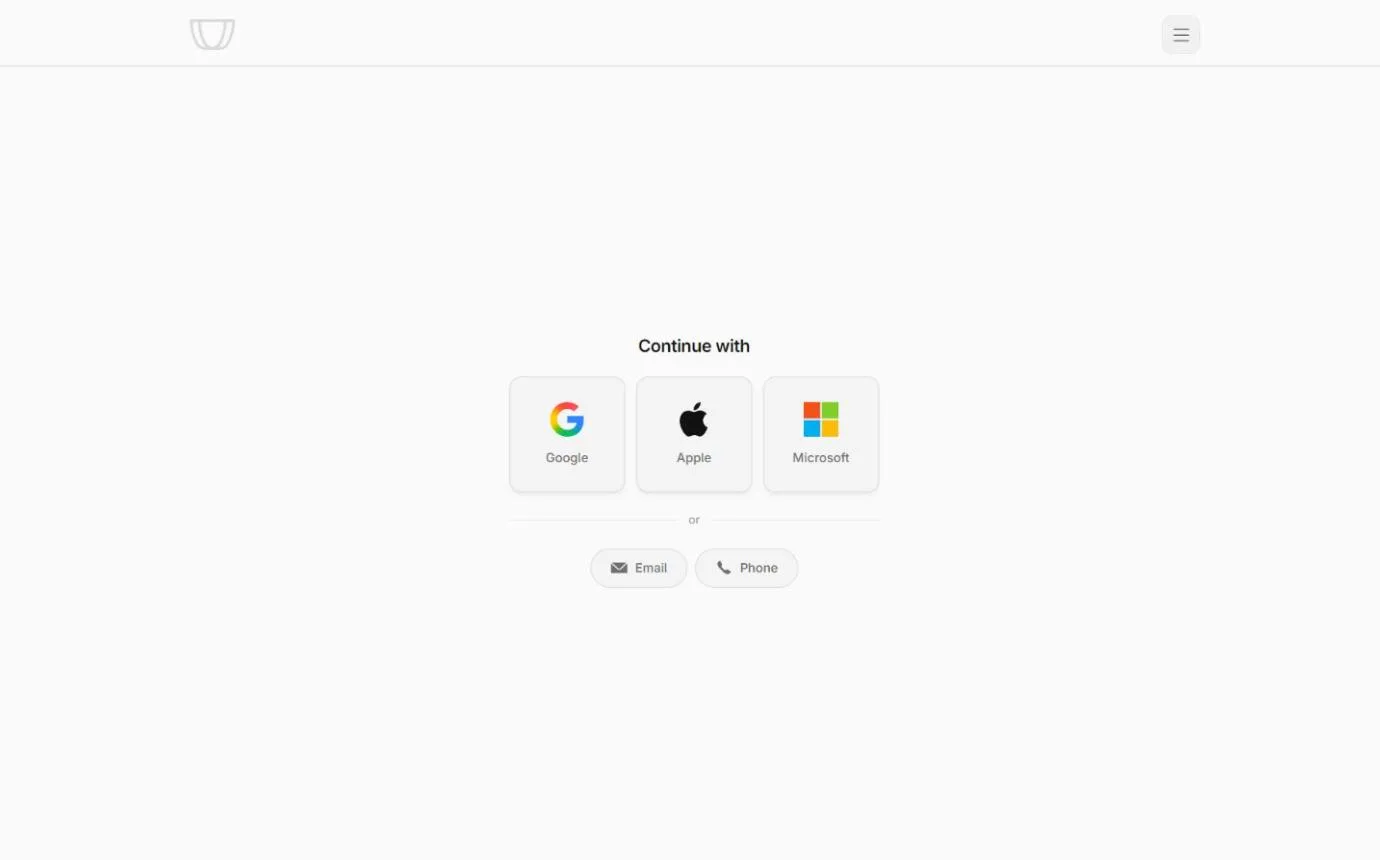
Ways to sign up and sign in
| Method | Where you find it | What happens |
|---|---|---|
| Google, Apple or Microsoft | The sign-up page and the sign-in page | You confirm with that account. If you do not have a Matchai account yet, one is created. |
| Email and password | Email, on the sign-up page and the sign-in page | When you sign up, we email you a 6-digit code to confirm your address. |
| Mobile number | Phone, on the sign-in page | We text you a 6-digit code. If no account uses that number yet, one is created. |
The sign-up page is at matchai.co/signup and the sign-in page is at matchai.co/login. You can also go to matchai.co and choose Open app.
Sign up with Google, Apple or Microsoft
Go to matchai.co/signup.
Under Create your Matchai account with, choose Google, Apple or Microsoft.
Sign in with that account when it asks you to.
Back on Matchai, tick I agree to the Terms of service and Privacy policy, then choose Continue.
If your sign-in provider did not share your name, Matchai asks What should we call you? Enter your first and last name, then choose Continue.
Matchai gives you a username automatically, based on your email address. You can change it in your profile. See set up your profile.
Sign up with your email address
Go to matchai.co/signup and choose Email.
Fill in First name, Last name, Username, Email address, Password and Confirm password. Your password needs at least 8 characters.
Check the message under Username. It tells you whether the name is available. A username has 3 to 30 characters: lowercase letters, numbers and underscores.
Tick I agree to the Terms of service and Privacy policy, then choose Send verification code.
Open the email from Matchai, enter the 6-digit code, then choose Confirm.
If the code does not arrive, check your spam folder. The code window shows how much time you have left. Send again sends a new code. If you mistyped your address, choose Change it, next to Wrong email?, to go back to the form with everything else still filled in.
If you close the code window by mistake, the sign-up page keeps a reminder with Enter code, Resend code and Change email.
Why it works this way
The username you ask for is only yours once you confirm your email address. If you mistype your address, the code never reaches you, and the account you started holds nothing. Correct the address and sign up again: the username you wanted is still free for you.
Sign in with your mobile number
Go to matchai.co/login and choose Phone.
Enter your Mobile number, then choose Text me a code.
Enter the six-digit code we text you. You are signed in as soon as the code is complete.
If the code does not arrive, choose Resend code. If you typed the wrong number, choose Use a different number.
If you first used Matchai by messaging a professional from a listing and confirming your number, this is how you get back to that conversation on a new device.
When a mobile number creates a new account, Matchai asks you to accept the terms and to enter your name the first time you sign in. It also gives you a username automatically, which you can change in your profile.
Sign in
Go to matchai.co/login. Under Continue with, choose the method you signed up with.
For email, choose Email, enter your email address and password, then choose Log in.
If you forgot your password, choose Email, then Forgot password?. Enter your email address and choose Send reset link. Open the link in the email, enter your new password twice, then choose Reset password.
If you signed up with Google, Apple or Microsoft and want a password as well, use Forgot password? to set one.
If someone invited you, open their invitation link first. The sign-in page shows who invited you, and the invitation is accepted once you are signed in.
What happens after you sign up
After your first sign-in, Matchai welcomes you and offers two paths.
- Browse properties. Choose Browse agent sites to see the websites of professionals on Matchai. If you signed up from a professional's website, choose Return to agent's site to go back where you were.
- I'm a real estate professional. Choose it to see what a professional account includes, then choose Get started.
If you leave this screen without choosing, nothing is lost. You can turn your account into a professional account at any time, as described below.
Set up a professional account
The setup takes three short steps. You can change everything later in your profile.
Basic information. Enter your first and last name. Your phone number and a short bio are optional. Choose Next.
Professional identity. Choose at least one of your Industry roles. A job title and a board membership with your license number are optional. Choose Next.
Organization. Find or add the company you work with, your website and your office address. Choose Complete setup, or Skip for now to finish without them.
Matchai then shows a short tour of your workspace: your professional site, listings, leads, clients, peers, teams and projects. Choose Next to move through it. Go to workspace opens your listings.
Regular and professional accounts
| Regular account | Professional account | |
|---|---|---|
| Browse professionals' websites and listings | Yes | Yes |
| Save listings, message professionals, book appointments | Yes | Yes |
| The workspace: listings, leads, clients, peers, teams, projects and calendar | No | Yes |
| Your own Matchai Site and Matchai Page | No | Yes |
To turn a regular account into a professional account later, open Settings, go to Account, and choose Convert to professional account under Professional account. The same three setup steps follow.
If you open a link to the workspace with a regular account, Matchai shows Workspace access required, with the same Convert to professional account button.
Why it works this way
The people a professional works with use Matchai too. A buyer who saves listings and messages their broker does not need a workspace, a website or a listings dashboard. Two kinds of accounts keep each one simple: clients see what they need, and professionals get the tools to run their business.
Sign out
Select your profile picture, then choose Log out. On a phone, outside the workspace, open Menu and choose Log out. In the workspace on a computer, Log out is also at the bottom of the Settings list.
Logging out ends your session on every device where you are signed in to Matchai.
Delete your account
You can delete your account yourself, from inside Matchai.
Deleting your account cannot be undone
It permanently deletes your profile, your listings and their photos and documents, your saved properties, your contacts, your appointments and your files. Matchai cannot restore any of it afterwards.
Sign in, open Settings, then go to Account.
Choose Delete account.
Read the summary of what will be removed, including how many files you have, then choose Continue.
Tick the confirmation, type the value the page asks for, such as your email address, then choose Delete my account.
Keep the window open while Matchai deletes everything. It shows its progress and tells you when your account is deleted.
What else to know:
- Messages you sent stay in the other person's copy of the conversation, but they are no longer linked to you. Photos and documents you attached are deleted.
- Your website stops being shown, and its
matchai.coaddress is released, so someone else can claim it. If you connected your own domain, Matchai stops managing it. Cancel it with the company you bought it from, or it keeps renewing. - Any active subscription is cancelled first. If a cancellation fails, nothing is deleted, so you are never left paying for an account you cannot sign in to.
- Some things need you first. If you are the only owner of a team or project that other people are in, give someone else ownership. If a listing shows you as its agent and is not yours alone, hand it to another agent on the listing or delete it. Matchai lists each one and links you to it.
If you cannot sign in, write to support@matchai.co from the address on the account and we will delete it for you.