Language and appearance
Use Matchai in English, French (Canada) or Spanish, choose a system, light or dark theme, and adjust your calendar and navigation.
Languages
Matchai is available in three languages:
- English
- Français (Canada)
- Español
Each language is listed in its own words, so you can always find yours.
The language you see first
The first time you open Matchai on a device, it picks a language for you:
- If you are in Quebec, Matchai opens in Français (Canada).
- Otherwise, it uses the first of your browser's preferred languages that Matchai offers: English, French or Spanish.
- If neither applies, it opens in English.
Matchai remembers the language on that device, so you only change it once.
Change the language
The change applies straight away. There is nothing to save.
Open Menu on a phone, or the menu button at the top right on a computer, and choose Settings. Language is the first setting.
On the matchai.co home page, you can also use the language switcher at the top, which shows EN, FR or ES.
When you visit a professional's website, listings appear in your language when a translation is available.
Why it works this way
When you are signed in, your choice is saved to your account, so it follows you to your phone, your computer and any new device. When you sign in, the language saved to your account replaces the one the device picked. Signing in on a borrowed computer, or while traveling, does not change the language you chose.
Theme
Matchai has three themes:
- System follows your device's appearance setting, and switches between light and dark when your device does.
- Light always uses the light theme.
- Dark always uses the dark theme.
System is the starting choice. To change it:
Open Menu on a phone, or the menu button at the top right on a computer, and choose Settings. Pick a Theme.
Each theme shows a small preview, so you can see it before you choose. Your theme is saved on the device where you choose it, so you can use dark on your phone and light on your computer.
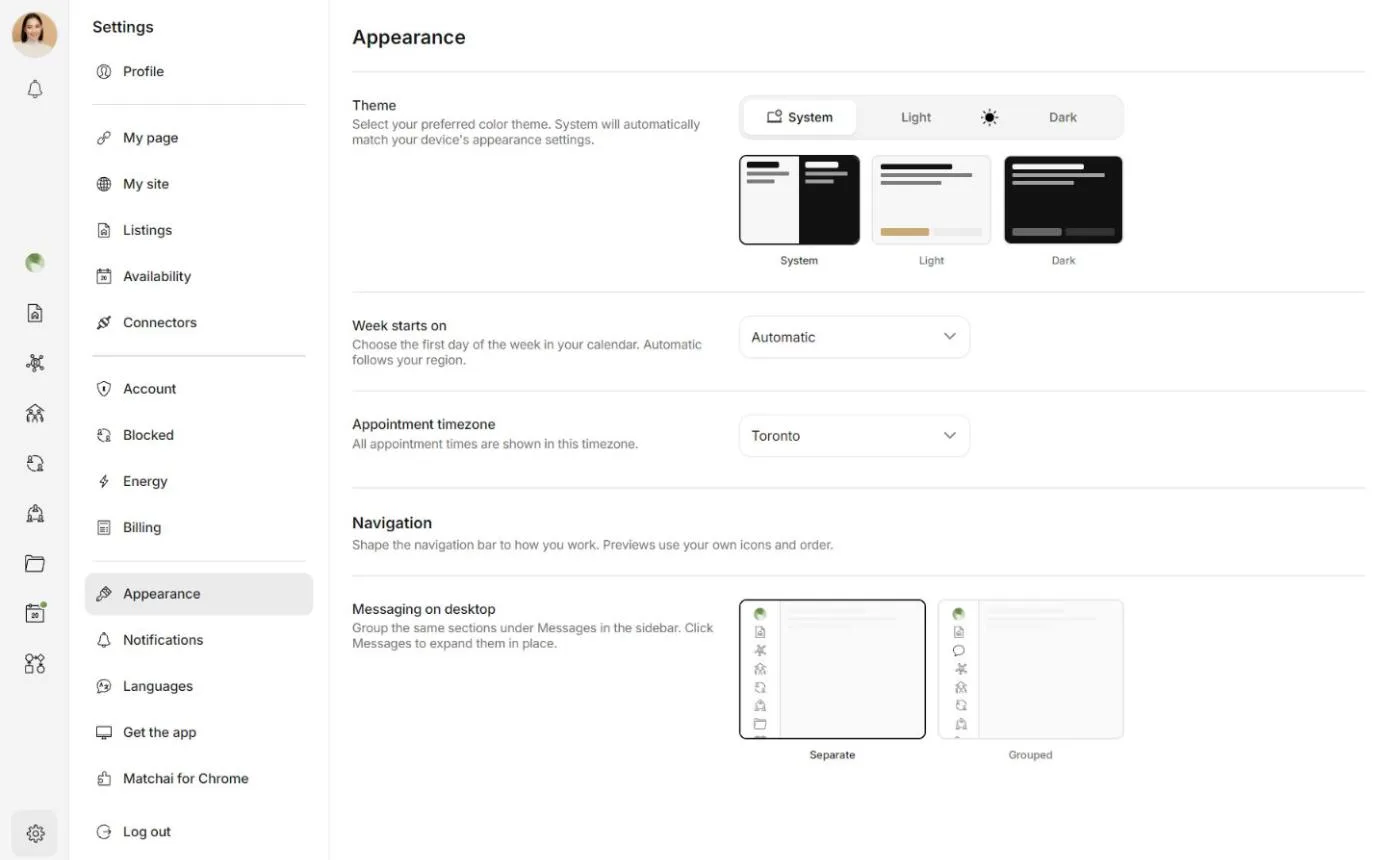
More appearance settings
With a professional account, Settings then Appearance also has:
| Setting | What it does |
|---|---|
| Week starts on | The first day of the week in your calendar: Automatic, which follows your region, Sunday, Monday or Saturday. |
| Appointment timezone | The timezone in which all appointment times are shown. |
| Mobile navigation | Fixed shows a few evenly spaced icons at the bottom of your phone. Swipeable lets you swipe through all of them, with the number of Icons per page you choose. |
| Messaging on mobile | Grouped puts leads, clients, peers, teams and projects under one Messages icon. Separate gives each its own icon. While the mobile bar is Fixed, they are always grouped. |
| Messaging on desktop | The same choice for the sidebar on a computer. With Grouped, click Messages to open the sections in place. |
Keyboard shortcuts
In the workspace on a computer, press Esc to go back one step. It closes what you have open, such as a conversation or an appointment, or returns to the previous page, until you reach the workspace home.
Esc does nothing while you are typing. When a window is open, Esc closes the window first.